- Go 65.1%
- Shell 12.7%
- HTML 9.5%
- JavaScript 8.5%
- Python 1.8%
- Other 2.4%
| Filename | Latest commit message | Latest commit date |
|---|---|---|
| .github/workflows | ||
| contrib | ||
| env2cfg | ||
| hooks | ||
| misc | ||
| tests | ||
| valheim-logfilter | ||
| valheim-panel | ||
| .dockerignore | ||
| .gitignore | ||
| bepinex-updater | ||
| bootstrap | ||
| busybox.config | ||
| common | ||
| defaults | ||
| docker-compose.single.yaml | ||
| docker-compose.yaml | ||
| Dockerfile | ||
| fake-supervisord | ||
| LICENSE | ||
| README.md | ||
| supervisord.conf | ||
| sync-dev-to-main | ||
| valheim-backup | ||
| valheim-bootstrap | ||
| valheim-is-idle | ||
| valheim-plus-updater | ||
| valheim-server | ||
| valheim-status | ||
| valheim-tests | ||
| valheim-updater | ||
| valheim.env.example | ||
| valheim.nomad | ||
| valheim.service | ||
| world-options | ||

Valheim Control
This checkout starts a web panel that manages one or more Valheim servers. The server image, panel code and Compose configuration are in this repository. Worlds, mods, accounts and other live data stay in the Git-ignored runtime/ directory inside the checkout.
Quick start
git clone https://forgejo.acnas.net/game/valheim-server-docker.git
cd valheim-server-docker
docker compose up -d
Open http://127.0.0.1:8080 on the Docker host. On first visit, create the admin password, then add a server and configure its world. On a remote host, use ssh -L 8080:127.0.0.1:8080 USER@HOST or set FLEET_BIND in a local .env file to listen on a trusted LAN address. The panel controls Docker through /var/run/docker.sock; keep access to the panel restricted.
To choose the panel address and port, create .env next to docker-compose.yaml:
FLEET_BIND=192.0.2.10
FLEET_PANEL_PORT=9871
Run docker compose up -d again after changing .env. The game ports are assigned when servers are created in the panel. To update the code, run git pull && docker compose up -d --build. Keep runtime/ when replacing or moving the checkout: Git deliberately does not contain saved worlds, installed mods or user accounts. If you need the original single-server Compose setup, use docker compose -f docker-compose.single.yaml up -d --build instead.

Valheim Server in a Docker Container (with BepInEx and ValheimPlus support)
This checkout builds on community-valheim-tools/valheim-server-docker.
Table of contents
- Basic Docker Usage
- Environment Variables
- System requirements
- Deployment
- Updates
- Crossplay
- Backups
- Finding Your Server
- Admin Commands
- Supervisor
- Status web server
- Modding
- Changing startup CMD in Portainer
- Synology Help
- QNAP NAS Help
- OpenMediaVault Help
- License
- Legal disclaimer
Basic Docker Usage
The name of the container image is ghcr.io/community-valheim-tools/valheim-server.
Volume mount the server config directory to /config within the Docker container.
If you have an existing world on a Windows system you can copy it from e.g.
C:\Users\Lukas\AppData\LocalLow\IronGate\Valheim\worlds_local
to e.g.
$HOME/valheim-server/config/worlds_local
and run the image with $HOME/valheim-server/config volume mounted to /config inside the container.
The container directory /opt/valheim contains the downloaded server. It can optionally be volume mounted to avoid having to download the server on each fresh start.
It also holds SteamCMD's depot manifest cache (/opt/valheim/dl/depotcache), which SteamCMD needs to update an existing installation after Valheim was updated on Steam, so the cache stays in sync with the installation it belongs to.
$ mkdir -p $HOME/valheim-server/config/worlds_local $HOME/valheim-server/data
# copy existing world
$ docker run -d \
    --name valheim-server \
    --cap-add=sys_nice \
    --stop-timeout 120 \
    -p 2456-2457:2456-2457/udp \
    -v $HOME/valheim-server/config:/config \
    -v $HOME/valheim-server/data:/opt/valheim \
    -e SERVER_NAME="My Server" \
    -e WORLD_NAME="Neotopia" \
    -e SERVER_PASS="secret" \
    ghcr.io/community-valheim-tools/valheim-server
Warning: SERVER_PASS must be at least 5 characters long. Otherwise valheim_server.x86_64 will refuse to start!
A fresh start will take several minutes depending on your Internet connection speed as the container will download the Valheim dedicated server from Steam (~1 GB).
Do not forget to modify WORLD_NAME to reflect the name of your world! For existing worlds that is the name of the world's directory inside the worlds_local/ folder, or the filename without the .db/.fwl extension for a pre-1.0 world.
If you want to play with friends over the Internet and are behind NAT make sure that UDP ports 2456-2457 are forwarded to the container host. (Remark: If you use crossplay, you don't need port forwarding! See official Valheim Dedicated Server Manual.pdf in the data/server folder.) Also ensure they are publicly accessible in any firewall.
Crossplay: To enable crossplay between different platforms set CROSSPLAY to true:
-e CROSSPLAY="true"
There is more info in section Finding Your Server.
For LAN-only play see section Steam Server Favorites & LAN Play
For more deployment options see the Deployment section.
Granting CAP_SYS_NICE to the container is optional. It allows the Steam library that Valheim uses to give itself more CPU cycles.
Without it you will see a message Warning: failed to set thread priority in the startup log.
Environment Variables
All variable names and values are case-sensitive!
| Name | Default | Purpose |
|---|---|---|
SERVER_NAME |
My Server |
Name that will be shown in the server browser |
SERVER_PORT |
2456 |
UDP start port that the server will listen on |
WORLD_NAME |
Dedicated |
Name of the world: the directory inside worlds_local/, or on pre-1.0 saves the filename without the .db/.fwl extension |
SERVER_PASS |
secret |
Password for logging into the server - min. 5 characters! |
SERVER_PASS_FILE |
Set to a secrets path (ie /run/secrets/server_pass) to read the server password from a secret instead of environment variables |
|
SERVER_PUBLIC |
true |
Whether the server should be listed in the server browser (true) or not (false) |
SERVER_ARGS |
Additional Valheim server CLI arguments | |
ADMINLIST_IDS |
Space separated list of admin SteamIDs in SteamID64 format. Overrides any existing adminlist.txt entries! | |
BANNEDLIST_IDS |
Space separated list of banned SteamIDs in SteamID64 format. Overrides any existing bannedlist.txt entries! | |
PERMITTEDLIST_IDS |
Space separated list of whitelisted SteamIDs in SteamID64 format. Overrides any existing permittedlist.txt entries! | |
CROSSPLAY |
false |
Whether the server should accept connections from non-Steam clients (true) or not (false). Check the Crossplay section for details. |
UPDATE_CRON |
*/15 * * * * |
Cron schedule for update checks (disabled if set to an empty string or if the legacy UPDATE_INTERVAL is set) |
IDLE_DATAGRAM_WINDOW |
3 |
The time window, in seconds, to wait for incoming UDP datagrams on non-public servers before determining if the server is idle |
IDLE_DATAGRAM_MAX_COUNT |
30 |
The number of incoming UDP datagrams the container should tolerate (including useless datagrams such as mDNS, as well as useful datagrams like queries against the UDP query port and active connections by players) on non-public servers before deciding that the server is not idle |
UPDATE_IF_IDLE |
true |
Only run update check if no players are connected to the server (true or false) |
RESTART_CRON |
10 5 * * * |
Cron schedule for server restarts (disabled if set to an empty string) |
RESTART_IF_IDLE |
true |
Only run daily restart if no players are connected to the server (true or false) |
TZ |
Etc/UTC |
Container time zone |
BACKUPS |
true |
Whether the server should create periodic backups (true or false) |
BACKUPS_CRON |
5 * * * * |
Cron schedule for world backups (disabled if set to an empty string or if the legacy BACKUPS_INTERVAL is set) |
BACKUPS_DIRECTORY |
/config/backups |
Path to the backups directory |
BACKUPS_MAX_AGE |
3 |
Age in days after which old backups are flushed |
BACKUPS_MAX_COUNT |
0 |
Maximum number of backups kept, 0 means infinity |
BACKUPS_IF_IDLE |
true |
Backup even when no players have been connected for a while |
BACKUPS_IDLE_GRACE_PERIOD |
3600 |
Grace period in seconds after the last player has disconnected in which we will still create backups when BACKUPS_IF_IDLE=false |
BACKUPS_ZIP |
true |
Compress Backups with zip. If set to false Backups will be stored uncompressed. |
PERMISSIONS_UMASK |
022 |
Umask to use for backups, config files and directories |
STEAMCMD_ARGS |
validate |
Additional steamcmd CLI arguments |
PUBLIC_TEST |
false |
Run the Public Test Beta version of Valheim server. Note that this simply extends existing STEAMCMD_ARGS by adding the appropriate beta flags to it. |
VALHEIM_PLUS |
false |
Whether ValheimPlus mod should be loaded (config in /config/valheimplus, additional plugins in /config/valheimplus/plugins, patchers in /config/valheimplus/patchers). Can not be used together with BEPINEX. |
VALHEIM_PLUS_REPO |
Grantapher/ValheimPlus |
Which ValheimPlus Github repo to use. Useful for switching to forks. |
VALHEIM_PLUS_RELEASE |
latest |
Which version of ValheimPlus to download. Will default to latest available. To specify a specific tag set to tags/0.9.9.8 |
BEPINEX |
false |
Initial BepInExPack choice for legacy/container-only setups. When the web panel is enabled, its saved choice and selected release override this value on subsequent runs. Config and plugins live under /config/bepinex. Cannot be used with VALHEIM_PLUS. |
BEPINEX_VERSION |
latest |
Legacy/container-only BepInExPack release selection. With the panel enabled, the version chosen in the panel takes precedence. |
PANEL_ENABLED |
false |
Start the Valheim mod web panel. On first launch, create its password in the browser. |
PANEL_PORT |
8080 |
TCP port used by the panel. With this checkout's Compose file, set it in the project .env to change both the container listener and the published localhost port. |
PANEL_PASSWORD |
Optional preconfigured web panel password (at least 12 characters). If omitted, create one on first launch. | |
PANEL_PASSWORD_FILE |
Read the panel password from a secrets file instead of an environment variable. | |
PANEL_SETUP_REQUIRED |
true |
On a new panel installation, wait for the first-run wizard before downloading or starting the server. Existing world files boot normally. |
PANEL_WEBMAP_PORT |
3000 |
Internal HTTP port of the optional ValheimWebMap mod used by the panel map. Do not publish this port. |
SUPERVISOR_HTTP |
false |
Turn on supervisor's http server |
SUPERVISOR_HTTP_PORT |
9001 |
Set supervisor's http server port |
SUPERVISOR_HTTP_USER |
admin |
Supervisor http server username |
SUPERVISOR_HTTP_PASS |
Supervisor http server password | |
SUPERVISOR_HTTP_PASS_FILE |
Set to a secrets path (ie /run/secrets/supervisor_pass) to read the supervisor password from a secret instead of environment variables |
|
STATUS_HTTP |
false |
Turn on the status http server. Only useful on public servers (SERVER_PUBLIC=true). |
STATUS_HTTP_PORT |
80 |
Status http server tcp port |
STATUS_HTTP_CONF |
/config/httpd.conf |
Path to the busybox httpd config |
STATUS_HTTP_HTDOCS |
/opt/valheim/htdocs |
Path to the status httpd htdocs where status.json is written |
SYSLOG_REMOTE_HOST |
Remote syslog host or IP to send logs to | |
SYSLOG_REMOTE_PORT |
514 |
Remote syslog UDP port to send logs to |
SYSLOG_REMOTE_AND_LOCAL |
true |
When sending logs to a remote syslog server also log local |
PUID |
0 |
UID to run valheim-server as |
PGID |
0 |
GID to run valheim-server as |
There are a few undocumented environment variables that could break things if configured wrong. They can be found in defaults.
Log filters
Valheim server by default logs a lot of noise. These env variables allow users to remove unwanted lines from the log.
| Prefix | Default | Purpose |
|---|---|---|
VALHEIM_LOG_FILTER_EMPTY |
true |
Filter empty log lines |
VALHEIM_LOG_FILTER_UTF8 |
true |
Filter invalid UTF-8 characters |
VALHEIM_LOG_FILTER_MATCH |
|
Filter log lines exactly matching |
VALHEIM_LOG_FILTER_STARTSWITH |
(Filename: |
Filter log lines starting with |
VALHEIM_LOG_FILTER_ENDSWITH |
Filter log lines ending with | |
VALHEIM_LOG_FILTER_CONTAINS |
Filter log lines containing | |
VALHEIM_LOG_FILTER_REGEXP |
Filter log lines matching regexp |
The default filter removes:
- Empty log lines
- Log lines consisting of a single space (wtf?)
- A repeating line saying
(Filename: ./Runtime/Export/Debug/Debug.bindings.h Line: 35) - Lines flooding the log with
Assertion Failedwarnings on packet processing timeouts (See #104) - If ValheimPlus is turned on lines starting with
Fallback handler could not load library
Log filter event hooks
If an environment variable prefixed with ON_ exists for an identically named log filter, instead of removing the log line the contents of the variable will be executed when the filter matches with the log line piped on stdin.
| Prefix | Purpose |
|---|---|
ON_VALHEIM_LOG_FILTER_MATCH |
Run command hook on log lines exactly matching |
ON_VALHEIM_LOG_FILTER_STARTSWITH |
Run command hook on log lines starting with |
ON_VALHEIM_LOG_FILTER_ENDSWITH |
Run command hook on log lines ending with |
ON_VALHEIM_LOG_FILTER_CONTAINS |
Run command hook on log lines containing |
ON_VALHEIM_LOG_FILTER_REGEXP |
Run command hook on regexp match |
All environment variables except for VALHEIM_LOG_FILTER_EMPTY and VALHEIM_LOG_FILTER_UTF8 are prefixes. Meaning you can define multiple matches like so:
-e VALHEIM_LOG_FILTER_STARTSWITH=foo \
-e VALHEIM_LOG_FILTER_STARTSWITH_BAR=bar \
-e VALHEIM_LOG_FILTER_STARTSWITH_SOMETHING_ELSE="some other filter"
-e VALHEIM_LOG_FILTER_CONTAINS_Connected="Got character ZDOID from"
-e ON_VALHEIM_LOG_FILTER_CONTAINS_Connected="cat >> /tmp/character_login"
Discord log filter event hook example
Sends a Discord message whenever a player spawns
-e DISCORD_WEBHOOK="https://discord.com/api/webhooks/8171522530..." \
-e VALHEIM_LOG_FILTER_CONTAINS_Spawned="Got character ZDOID from" \
-e ON_VALHEIM_LOG_FILTER_CONTAINS_Spawned='{ read l; l=${l//*ZDOID from /}; l=${l// :*/}; msg="Player $l spawned into the world"; curl -sfSL -X POST -H "Content-Type: application/json" -d "{\"username\":\"Valheim\",\"content\":\"$msg\"}" "$DISCORD_WEBHOOK"; }'
See Notify on Discord below for proper quoting in env and compose files.
If you are running ValheimPlus and this filter triggers twice, check this ValheimPlus issue.
The cause is a misconfigured BepInEx.cfg that causes all log lines to be duplicated.
Event hooks
The following environment variables can be populated to run commands whenever specific events happen.
| Name | Default | Purpose |
|---|---|---|
PRE_SUPERVISOR_HOOK |
Command to be executed before supervisord is run. Startup is blocked until this command returns. | |
PRE_BOOTSTRAP_HOOK |
Command to be executed before bootstrapping is done. Startup is blocked until this command returns. | |
POST_BOOTSTRAP_HOOK |
Command to be executed after bootstrapping is done and before the server or any services are started. Can be used to install additional packages or perform additional system setup. Startup is blocked until this command returns. | |
PRE_BACKUP_HOOK |
Command to be executed before a backup is created. @BACKUP_FILE@ is replaced by the future backup's full path. Backups are blocked until this command returns. |
|
POST_BACKUP_HOOK |
Command to be executed after a backup is created. @BACKUP_FILE@ is replaced by the backup's full path. Backups are blocked until this command returns. See Copy backups to another location for details. |
|
PRE_UPDATE_CHECK_HOOK |
Command to be executed before an update check is performed. Current update is blocked until this command returns. | |
POST_UPDATE_CHECK_HOOK |
Command to be executed after an update check was performed. Future updates are blocked until this command returns. | |
PRE_START_HOOK |
Command to be executed before the first server start is performed by the valheim-updater. Current start is blocked until this command returns. | |
POST_START_HOOK |
Command to be executed after the first server start was performed by the valheim-updater. Future restarts and update checks are blocked until this command returns. | |
PRE_RESTART_HOOK |
Command to be executed before a server restart is performed by the valheim-updater. Current restart is blocked until this command returns. | |
PRE_SERVER_LISTENING_HOOK |
Command to be executed after the server runs, but before it's able to accept connections. The loop that checks connection status will be blocked until this command returns. | |
POST_SERVER_LISTENING_HOOK |
Command to be executed once the server is available for players to connect! The hook only fires after status is updated to running. |
|
POST_RESTART_HOOK |
Command to be executed after a server restart was performed by the valheim-updater. Future restarts and update checks are blocked until this command returns. | |
PRE_SERVER_RUN_HOOK |
Command to be executed before the server is started. Server startup is blocked until this command returns. | |
POST_SERVER_RUN_HOOK |
Command to be executed after the server has finished running. Server shutdown is blocked until this command returns or a shutdown timeout is triggered after 29 seconds. | |
PRE_SERVER_SHUTDOWN_HOOK |
Command to be executed before the server is shut down. Server shutdown is blocked until this command returns. If PRE_SERVER_SHUTDOWN_HOOK holds the shutdown process for more than 90 seconds, the entire process will be hard-killed by supervisord. |
|
POST_SERVER_SHUTDOWN_HOOK |
Command to be executed after the server has finished shutting down. | |
PRE_BEPINEX_CONFIG_HOOK |
Command to be executed before writing BepInEx.cfg. | |
POST_BEPINEX_CONFIG_HOOK |
Command to be executed after writing BepInEx.cfg. Can be used to write your own mod config using env2cfg. |
Event hook examples
Install extra packages
-e POST_BOOTSTRAP_HOOK="apt-get update && DEBIAN_FRONTEND=noninteractive apt-get -y install awscli"
Copy backups to another location
After a backup has been created the command specified by $POST_BACKUP_HOOK will be executed if set to a non-zero string.
Within that command the string @BACKUP_FILE@ will be replaced by the full path to the just created backup. That is a ZIP file by default;
with BACKUPS_ZIP=false a Valheim 1.0 world is backed up as a directory, so use a command that copies recursively.
-v $HOME/.ssh/id_rsa:/root/.ssh/id_rsa \
-v $HOME/.ssh/known_hosts:/root/.ssh/known_hosts \
-e POST_BACKUP_HOOK='timeout 300 scp -r @BACKUP_FILE@ myself@example.com:~/backups/$(basename @BACKUP_FILE@)'
Notify on Discord
Because proper string quoting on the shell vs. inside a docker-compose.yaml vs. an env_file can be challenging, here are examples for each use case.
Using the commandline
Delay restarts by 1 minute and notify on Discord
-e DISCORD_WEBHOOK="https://discord.com/api/webhooks/8171522530..." \
-e DISCORD_MESSAGE="Restarting Valheim server in one minute!" \
-e PRE_RESTART_HOOK='curl -sfSL -X POST -H "Content-Type: application/json" -d "{\"username\":\"Valheim\",\"content\":\"$DISCORD_MESSAGE\"}" "$DISCORD_WEBHOOK" && sleep 60'
Inside docker-compose.yaml
Notify on Discord with server's name in the message
    environment:
      - DISCORD_WEBHOOK=https://discord.com/api/webhooks/8171522530...
      - DISCORD_MESSAGE=Starting Valheim server $$SERVER_NAME
      - 'PRE_BOOTSTRAP_HOOK=curl -sfSL -X POST -H "Content-Type: application/json" -d "{\"username\":\"Valheim\",\"content\":\"$$(eval echo $$DISCORD_MESSAGE)\"}" "$$DISCORD_WEBHOOK"'
Inside an env_file
DISCORD_WEBHOOK=https://discord.com/api/webhooks/8171522530...
DISCORD_MESSAGE=Starting Valheim server
PRE_BOOTSTRAP_HOOK=curl -sfSL -X POST -H "Content-Type: application/json" -d "{\"username\":\"Valheim\",\"content\":\"$DISCORD_MESSAGE\"}" "$DISCORD_WEBHOOK"
Notify on Matrix, inside an env_file
Create an account for your bot, log in and join the room you want to post to. The room ID is noted in the room's settings.
MATRIX_BOT_SERVER=https://matrix...
MATRIX_BOT_ROOM_ID=!...
MATRIX_BOT_ACCESS_TOKEN=...
PRE_RESTART_HOOK=curl -sfSL -X PUT -d "{\"msgtype\":\"m.notice\",\"body\":\"Valheim is being updated\"}" "$MATRIX_BOT_SERVER/_matrix/client/r0/rooms/$MATRIX_BOT_ROOM_ID/send/m.room.message/$(date +%s-%N)?access_token=$MATRIX_BOT_ACCESS_TOKEN"
Note the $(date +%s-%N) is used for the required unique txnId.
Mod config from Environment Variables
Mod config can be specified in environment variables using the syntax <prefix>_<section>_<variable>=<value>.
Predefined prefix list
| Prefix | Mod | File |
|---|---|---|
VPCFG |
ValheimPlus | /config/valheimplus/valheim_plus.cfg |
BEPINEXCFG |
BepInEx | /config/valheimplus/BepInEx.cfg or /config/bepinex/BepInEx.cfg depending on whether VALHEIM_PLUS=true or BEPINEX=true |
Translation table
Some characters that are allowed as section names in the config files are not allowed as environment variable names. They can be encoded using the following translation table.
| Variable name string | Replacement |
|---|---|
_DOT_ |
. |
_HYPHEN_ |
- |
_UNDERSCORE_ |
_ |
_PLUS_ |
+ |
_SPACE_ |
|
Example:
-e VALHEIM_PLUS=true \
-e VPCFG_Server_enabled=true \
-e VPCFG_Server_enforceMod=false \
-e BEPINEXCFG_Logging_DOT_Console_Enabled=true
turns into /config/valheimplus/valheim_plus.cfg
[Server]
enabled=true
enforceMod=false
and /config/valheimplus/BepInEx.cfg
[Logging.Console]
Enabled=true
All existing configuration in those files is retained and a backup of the old config is created as e.g. /config/valheimplus/valheim_plus.cfg.old before writing the new config file.
You could generate your own custom plugin config from environment variables using the POST_BEPINEX_CONFIG_HOOK event hook and env2cfg.
System requirements
On our system while idle with no players connected Valheim server consumes around 2.8 GB RSS. All the while using around 30% of one CPU Core on a 2.40 GHz Intel Xeon E5-2620 v3. Valheim server is making use of many threads with two of them seemingly doing the bulk of the work each responsible for around 8-10% of the 30% of idle load.
The picture changes when players connect. The first player increased overall load to 42%, the second player to 53%. In the thread view we see that a thread that was previously consuming 10% is now hovering around 38%. Meaning while Valheim server creates 50 threads on our system it looks like there is a single thread doing the bulk of all work (~70%) with no way for the Kernel to distribute the load to many cores.
Therefore our minimum requirements would be a dual core system with 4 GB of RAM and our recommended system would be a high clocked 4 core server with 8 GB of RAM. A few very high clocked cores will be more beneficial than having many cores. I.e. two 5 GHz cores will yield better performance than six 2 GHz cores. This holds especially true the more players are connected to the system.
Deployment
Deploying with Docker and systemd
Create a config file /etc/sysconfig/valheim-server
SERVER_NAME=My Server
SERVER_PORT=2456
WORLD_NAME=Dedicated
SERVER_PASS=secret
SERVER_PUBLIC=true
Then enable the Docker container on system boot
$ sudo mkdir -p /etc/valheim /opt/valheim
$ sudo curl -o /etc/systemd/system/valheim.service https://raw.githubusercontent.com/community-valheim-tools/valheim-server-docker/main/valheim.service
$ sudo systemctl daemon-reload
$ sudo systemctl enable valheim.service
$ sudo systemctl start valheim.service
Deploying with docker compose
Run docker compose up -d from the cloned repository. Compose builds the Valheim image, starts the fleet panel and creates runtime/ inside this checkout. Then create an admin password in the browser and add your first server. Each new server gets its own world, mods and configuration under runtime/fleet/instances/; the panel creates its game container and selects its UDP ports. See Quick start for panel address and update commands.
The former single-server Compose definition remains available as docker-compose.single.yaml. It uses $HOME/valheim-server/config and $HOME/valheim-server/data and is not started by the default command.
Deploying to Kubernetes
Kubernetes manifests using this container image, along with a helm chart, are available from the following repository: https://github.com/Addyvan/valheim-k8s
The chart is also available directly using:
helm repo add valheim-k8s https://addyvan.github.io/valheim-k8s/
helm repo update
helm install valheim-server valheim-k8s/valheim-k8s # see repo for full config
Deploying to AWS ECS
CDK Project for spinning up a Valheim game server on AWS Using ECS Fargate and Amazon EFS is available here: https://github.com/rileydakota/valheim-ecs-fargate-cdk
Deploying to Nomad
$ sudo mkdir -p /var/lib/valheim/{config,data}
$ sudo curl -o /var/lib/valheim/valheim.nomad https://raw.githubusercontent.com/community-valheim-tools/valheim-server-docker/main/valheim.nomad
$ sudo nomad job run /var/lib/valheim/valheim.nomad
Updates
By default the container will check for Valheim server updates every 15 minutes if no players are currently connected to the server.
If an update is found it is downloaded and the server restarted.
This update schedule can be changed using the UPDATE_CRON environment variable.
If Steam denies access to the installed depot manifest (Error! App '896660' state is 0x6 after update job.),
the updater moves appmanifest_896660.acf aside (kept as appmanifest_896660.acf.denied) and retries once
with validation. Failed downloads leave the separate installed game unchanged.
Crossplay
By default the container only allow Steam clients. If you enable the CROSSPLAY=true option the server will switch from Steam matchmaking to PlayFab, allowing Xbox and Microsoft Store clients to connect. When enabling crossplay, a third port is opened (2458 UDP) used for the crossplay backend communication.
Note that some mods may not work well or at all with crossplay enabled, which is why it is not enabled by default.
When you need crossplay
- You want Apple App Store, Xbox, and Microsoft Store players to be able to join.
- Your player base spans both Steam and any of the above platforms.
When you do not
- All players use Steam (whether on Windows, Linux, macOS, or Steam Deck).
Backups
The container will on startup and periodically create a backup of the worlds_local/ directory.
When the Valheim panel is configured and BACKUPS_ZIP=true (the default), automatic ZIPs also include the build manifest, mod configuration and local/manual mod files. Existing ZIPs and uncompressed backups remain usable as world-only copies. The panel reads backups from /config/backups.
The default is once per hour but can be changed using the BACKUPS_CRON environment variable.
Default backup directory is /config/backups/ within the container. A different directory can be set using the BACKUPS_DIRECTORY environment variable.
It makes sense to have this directory be a volume mount from the host.
Warning: do not make the backup directory a subfolder of /config/worlds_local/. Otherwise each backup will backup all previous backups.
By default 3 days worth of backups will be kept. A different number can be configured using BACKUPS_MAX_AGE. The value is in days.
It is possible to configure a maximum number of to-be-kept backup files with BACKUPS_MAX_COUNT. When going over this limit, the oldest file(s) will be deleted. The default is 0 which means no limit. Note that BACKUPS_MAX_AGE will always be respected: if backups get too old, they will be deleted even if BACKUPS_MAX_COUNT was not yet reached (or is 0).
Beware that backups are performed while the server is running. As such files might be in an open state when the backup runs.
On pre-1.0 saves the worlds_local/ directory also contains a .db.old file for each world which should always be closed and in a consistent state.
Valheim 1.0 stores each world as a directory of many files instead of a single .db, so a backup taken mid-save could otherwise capture a
chunk index that refers to chunk files the server had already replaced. The backup job detects this - the server marks each committed save
with a _main.<n>.ok file - and retries the backup up to three times if the world was saved while it was being read. If none of the attempts
land between saves the backup is still kept, and a warning is logged. Setting BACKUPS_IF_IDLE=false makes this far less likely, since
backups then only run when players are around and world saves are less frequent.
See Copy backups to another location for an example of how to copy backups offsite.
If BACKUPS_IF_IDLE=false then backups are only created if there has been recent player activity. Once the last player disconnects
there is a grace period BACKUPS_IDLE_GRACE_PERIOD in seconds after which backups are still being created. The reason for this is that Valheim
dedicated server only saves the world in 20 minute intervals and on shutdown. So to make sure that we have a consistent world file backup of
the most recent changes we want to wait out one world save. This grace period also needs to be long enough so that our BACKUPS_CRON had a chance to run.
BACKUPS_ZIP=false can be used to store backups uncompressed in the backup directory. Please note that this will increase the filesize of the backups, due to no compression.
Upgrading a world to Valheim 1.0
The first time a 1.0 server opens a world saved by an older version it converts it to the new directory format. As with every Valheim world version upgrade this is one-way - an older server cannot read the world afterwards - so make sure you are happy with your backups first.
If you run with a non-root PUID/PGID, make sure you are on an image that contains this change before letting a 1.0 server convert a
world. Older images apply the file permission mode to everything directly inside worlds_local/, which strips the execute bit from the new
per-world directories and leaves the server unable to open its own save - it logs UnauthorizedAccessException and then keeps running with no
world loaded, so the container still looks healthy. At the default PUID=0 the server runs as root and is unaffected.
Manual backup
Sending SIGHUP to the valheim-backup service or restarting the service will create a backup.
If BACKUPS_IF_IDLE=false sending SIGHUP only creates a backup if there has been recent player activity.
Restarting valheim-backup will always create a backup.
The PID of the running service can be found in /var/run/valheim-backup.pid
Assuming your container's name is valheim-server here's how both would work:
Sending SIGHUP using supervisorctl
docker exec -it valheim-server supervisorctl signal HUP valheim-backup
Sending SIGHUP manually
docker exec -it valheim-server bash -c 'kill -HUP $(< /var/run/valheim-backup.pid)'
Restarting valheim-backup
docker exec -it valheim-server supervisorctl restart valheim-backup
The restart can also be done from the Supervisor web UI.
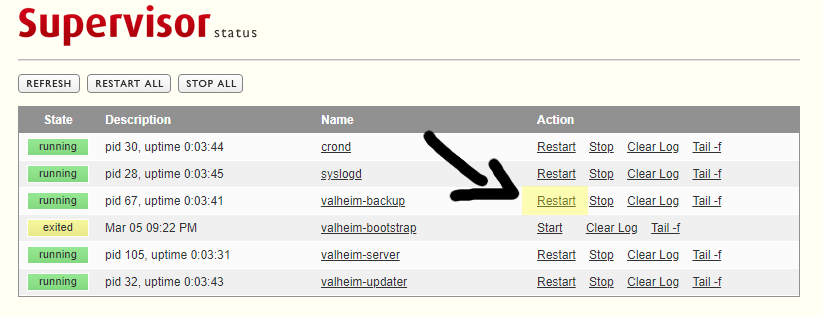
Finding Your Server
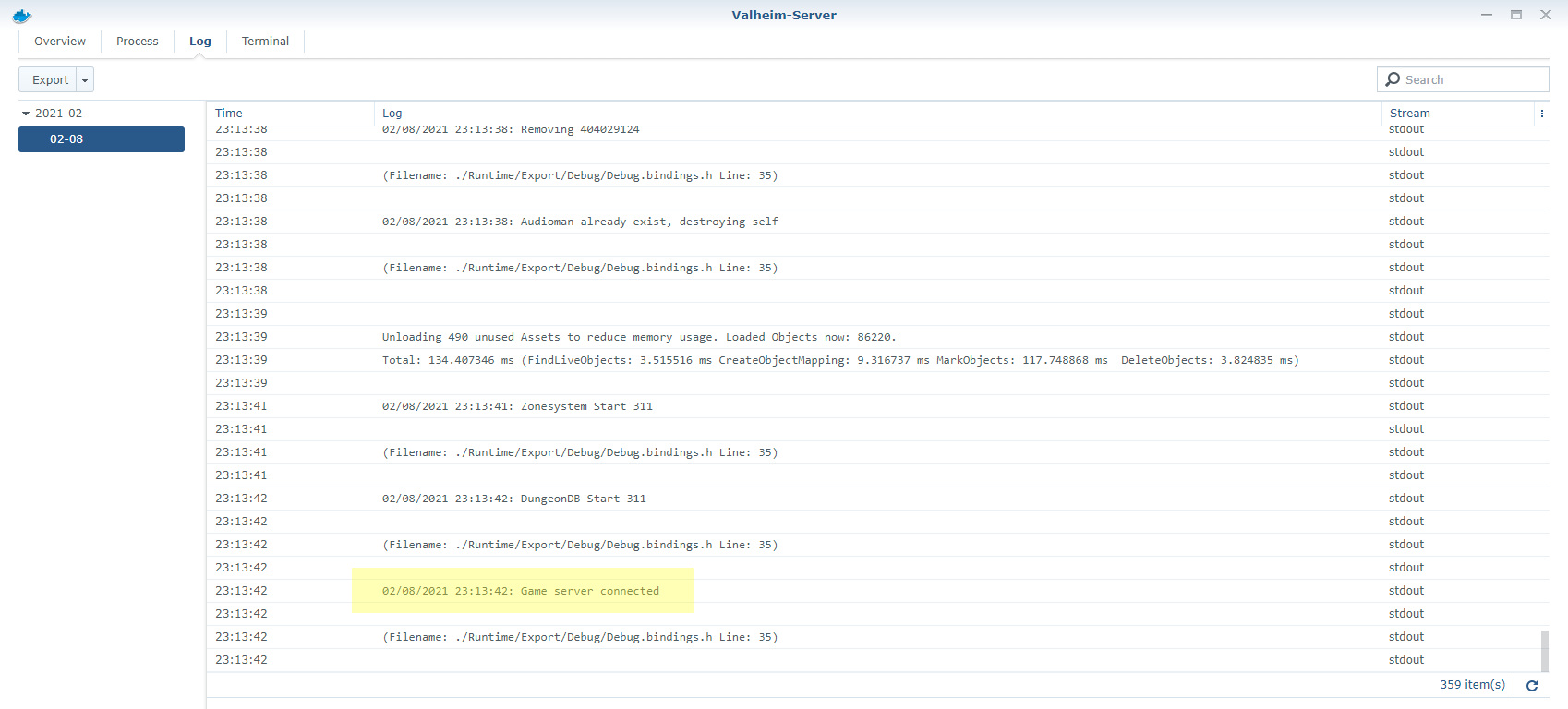
Once the server is up and running and the log says something like
02/09/2021 10:42:24: Game server connected
it can still be challenging to actually find the server.
There are three ways of getting to your server. Either using the Steam server browser, adding the IP manually or using the in-game Community server list.
In-game
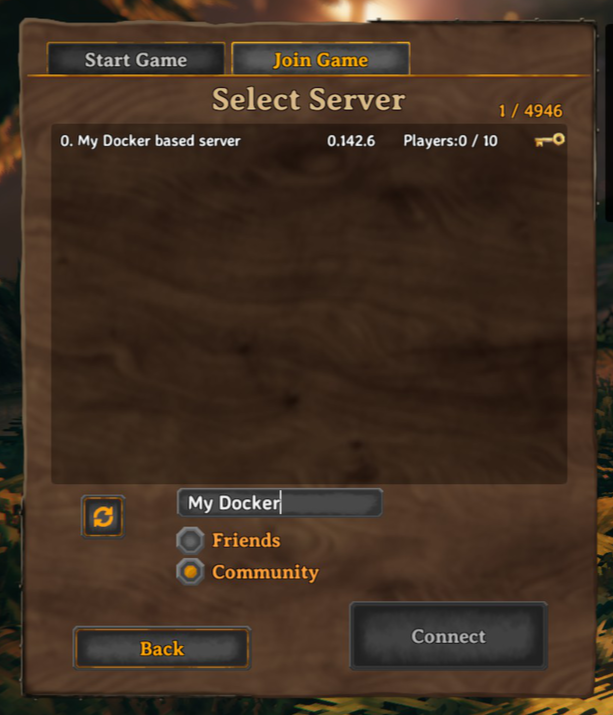
When in-game, click on Join Game and select Community. Wait for the game to load the list of all 4000+ servers.
Only 200 servers will be shown at a time so we will have to enter part of our server name to filter the view.
Joining Directly via Hostname/IP
Valheim has since added the Join IP button to the Join Game tab. If you click the Join IP button, you are prompted to enter your server's IP address and port number.
If you left the SERVER_PORT at its default value of 2456, you do not have to enter the port. The hostname or IP of your server will suffice.
If you changed the port, you have to specify it like this: example.com:3333.
This method of connecting to your server will work even if your server is not public (i.e., you set SERVER_PUBLIC to false).


Steam Server Browser
When using the Steam server browser, in Steam go to View -> Servers. Click on CHANGE FILTERS and select Game Valheim.
Wait for Steam to load all 4000+ Servers then sort the SERVERS column by clicking on its title. Scroll down until you find your server.
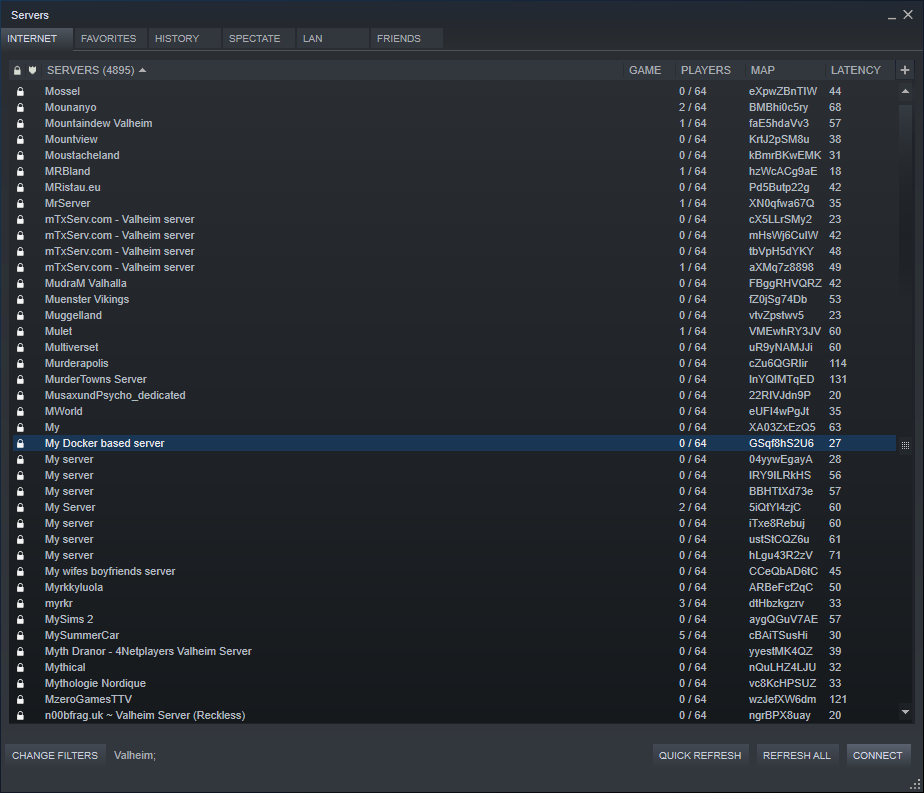 From there you can right-click it and add as a favourite.
Note that in my tests when connecting to the server via the Steam server browser I had to enter the server password twice. Once in Steam and once in-game.
Steam Server Favorites & LAN Play
A third option within Steam is to add the server manually by IP. This also allows for LAN play without the need to open or forward any firewall ports.
Remark: LAN-Play is only available for Steam-Version without CrossPlay enabled! See official Valheim Dedicated Server Manual.pdf in the data/server folder.
Steps:
- Within Steam click on
View -> Servers FAVORITESADD SERVER- Enter Server IP and port+1. So if the server is running on UDP port
2456enterip:2457 FIND GAMES AT THIS ADDRESS...ADD SELECTED GAME SERVER TO FAV...
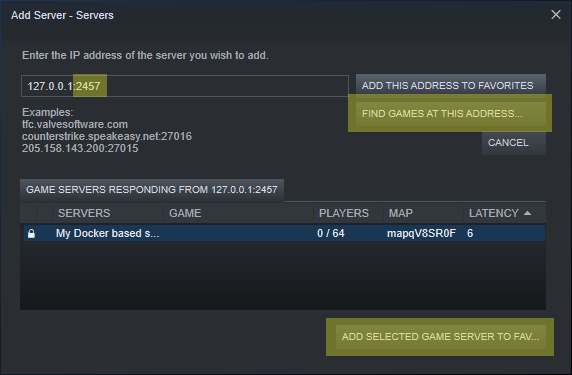
Do not use the ADD THIS ADDRESS TO FAVORITES button at this point.
NOTE: Sometimes I will get the following error when trying to connect to a LAN server:
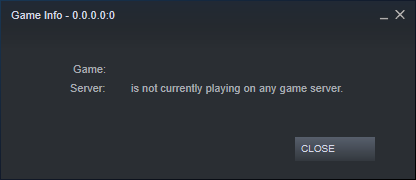
In those cases it sometimes helped to add the server again, but this time using port 2456 and now pressing the ADD THIS ADDRESS TO FAVORITES button.
It will not generate a new entry in the favourites list but seemingly just update the existing one that was originally discovered on port 2457.
Sometimes it also helps to press the REFRESH button and then immediately double click on the Server.
Overall LAN play via the Steam Server Browser has been a bit hit and miss for me while online play using the in-game search has resulted in the most consistent success.
NOTE 2: You will only find your Valheim game server using this method if your server is public (SERVER_PUBLIC is NOT set to false).
If you started your server with SERVER_PUBLIC set to false, you will get the error message: Server is not responding. in the list where the servers are supposed to appear.
Admin Commands
Upon startup the server will create a file /config/adminlist.txt. In it you can list the IDs of all administrator users.
The ID of a user can be gotten either in-game by pressing F2
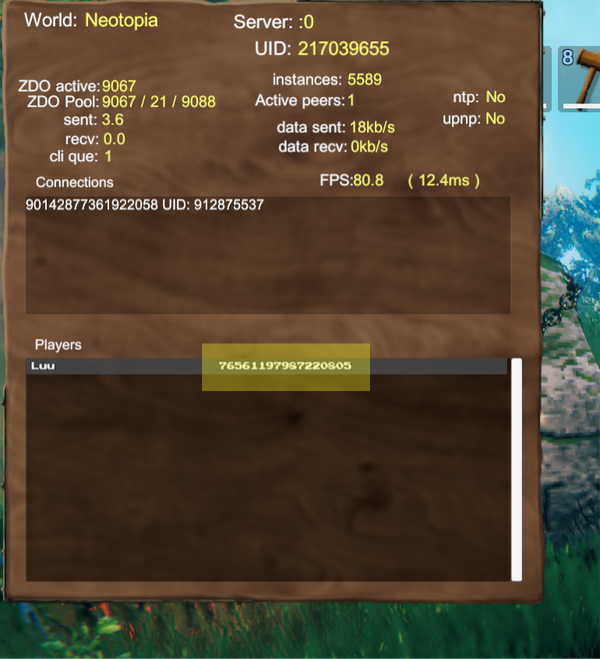
or in the server logs when a user connects.
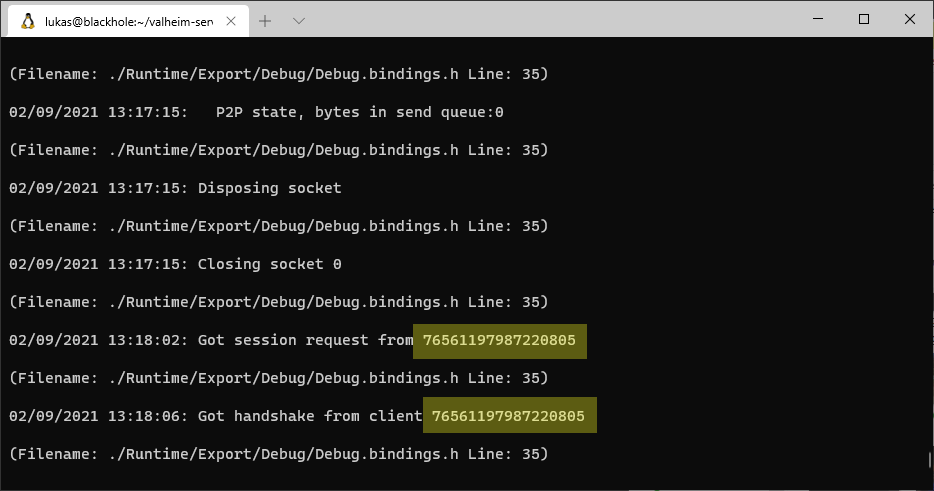
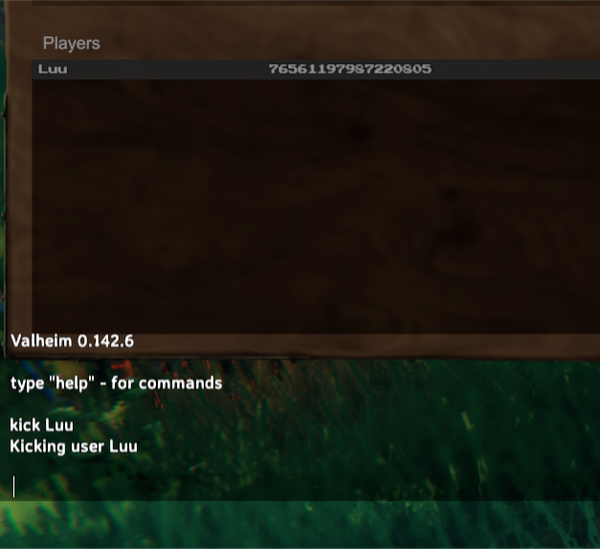
Administrators can press F5 to open the in-game console and use commands like ban and kick.
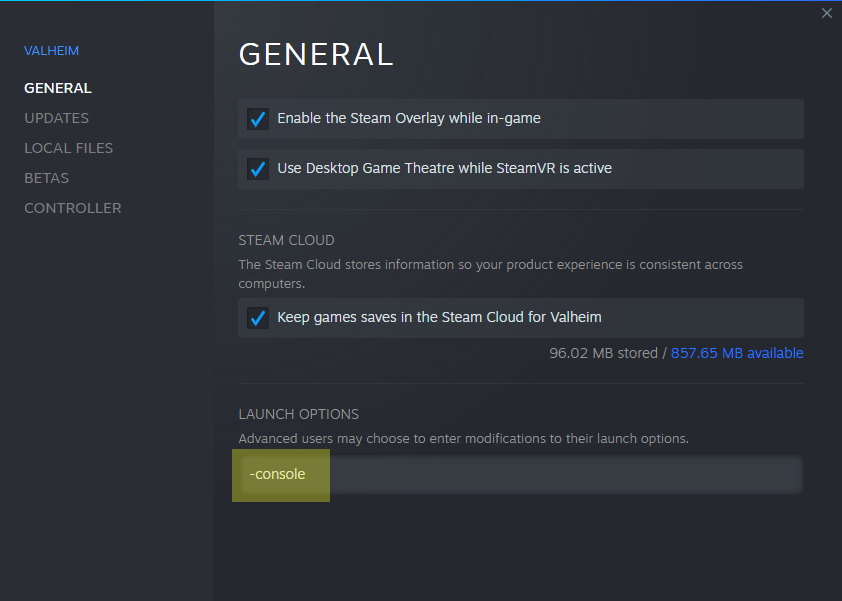
Enable Admin Console
In recent versions of Valheim the game client has to be started with the -console flag for F5 to work.
Supervisor
This container uses a process supervisor aptly named supervisor.
Within the container processes can be started and restarted using the command supervisorctl. For instance supervisorctl restart valheim-server would restart the server.
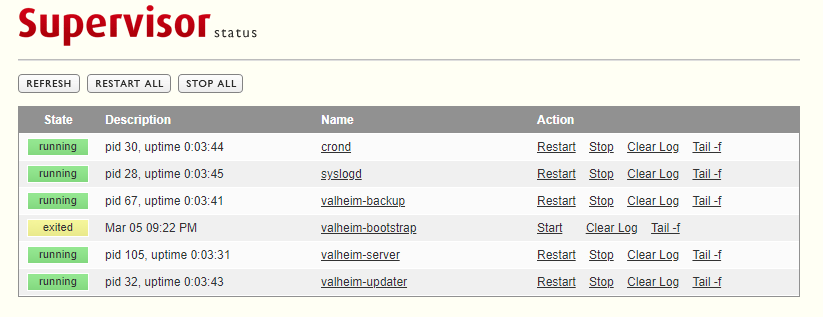
Supervisor provides a very simple http interface which can be optionally turned on by supplying SUPERVISOR_HTTP=true and a password in SUPERVISOR_HTTP_PASS.
The default SUPERVISOR_HTTP_USER is admin but can be changed to anything else. Once activated the http server will listen on tcp port 9001 which has to be exposed (-p 9001:9001/tcp).
Supervisor API
If Supervisor's http server is enabled it also provides an XML-RPC API at /RPC2. Details can be found in the official documentation.
Status web server
If STATUS_HTTP is set to true the status web server will be started.
By default it runs on container port 80 but can be customized using STATUS_HTTP_PORT.
This only works for public Valheim servers (SERVER_PUBLIC=true) because private ones do not answer to Steam server queries.
A /status.json will be updated every 10 seconds.
Whenever Valheim server is not yet running the status will contain an error like
{
  "last_status_update": "2021-03-07T21:42:46.307232+00:00",
  "error": "timeout('timed out')"
}
The error is just a string representation of whatever Python exception was thrown when trying to connect to the query port (2457/udp by default).
Once the server is running and listening on its UDP ports /status.json will contain something like this
{
  "last_status_update": "2021-03-07T21:42:16.076662+00:00",
  "error": null,
  "server_name": "My Docker based server",
  "server_type": "d",
  "platform": "l",
  "player_count": 1,
  "password_protected": true,
  "vac_enabled": false,
  "port": 2456,
  "steam_id": 90143789459088380,
  "keywords": "0.147.3@0.9.4",
  "game_id": 892970,
  "players": [
    {
      "name": "",
      "score": 0,
      "duration": 7.000421047210693
    }
  ]
}
All the information in status.json is fetched from Valheim servers public query port. You will notice that some of the fields like player name or player score currently contain no information. However for completeness the entire query response is left intact.
Within the container status.json is written to STATUS_HTTP_HTDOCS which by default is /opt/valheim/htdocs. It can either be consumed directly or the user can add their own html/css/js to this directory to read the json data and present it in whichever style they prefer. A file named index.html will be shown on / if it exists.
As mentioned all the information is publicly available on the Valheim server query port. However the option is there to configure a STATUS_HTTP_CONF (/config/httpd.conf by default) containing busybox httpd config to limit access to the status web server by IP/subnet or login/password.
Monitoring with UptimeKuma
The status web server can be monitored using UptimeKuma, a popular open source monitoring tool. UptimeKuma supports JSONata expressions which can be used to determine the health of your Valheim server.
To monitor your server:
- Set up UptimeKuma according to their documentation
- Add a new monitor with type "HTTP(s) - Json Query"
- Enter the URL to your status endpoint (e.g.,
http://your-server-ip:80/status.json) - Under "Json Query", enter the following:
(
   $now := $toMillis($now()[0]);  /* Extract first element of $now() array */
   $lastUpdate := $toMillis(last_status_update);
   $minutesDiff := ($now - $lastUpdate) / 60000;  /* Difference in minutes */
   error = null and $minutesDiff <= 1 ? "healthy" : "unhealthy"
)
- Set "Expected Value" to
healthy
This JSONata expression checks two conditions:
- The server has no errors (
error = null) - The status has been updated within the last minute (
$minutesDiff <= 1)
If both conditions are met, the monitor will return "healthy", otherwise "unhealthy". This provides a simple way to ensure your Valheim server is running properly.
Modding
Remark: Some Mods are using RPC commands, which needs gameport+2 for communication (e.g. if you're using gamport 2456, you have to open port 2458 too for the network: 2456-2458:2456-2458/udp) and in your firewall rules (if defined).
Web control panel
Valheim Control is the interface for every managed game server. Start the fleet manager with docker compose up -d, create an admin password of at least 12 characters, and add a server. Open a server card to manage its settings, mods, world and logs. Its per-server credentials are stored as an Argon2id hash in its config/panel/auth.json (mode 0600).
For remote access, use a trusted HTTPS reverse proxy or SSH tunnel. The panel does not need Supervisor's HTTP port. Existing setups can keep PANEL_PASSWORD or PANEL_PASSWORD_FILE; a configured environment password takes precedence over the browser-created password. The secret file must be readable by the valheim user in the container.
On a new volume without a world, completing panel password creation opens the server setup wizard. Its first page asks for the server name, world name, optional game password, public listing and crossplay. Selecting passwordless access on a public server installs and enables the server-side 1010101110-serverblankpassword package and BepInEx before the game starts. A private (-public 0) server can run without a password and without that mod. Passwordless mode can also be selected when adding a server or editing its settings; the panel keeps the mod enabled while a public server has no game password. The second page asks for a Valheim difficulty preset, combat, death penalty, resources, raids, portals, optional world keys (no build cost, player events, passive mobs and no map), and the autosave interval. The game server waits until both pages are saved. Existing worlds skip the wizard, and all these settings remain editable on the Server page. Settings saved in the panel are kept in /config/panel/server.json (mode 0600) and override the corresponding environment variables on subsequent starts. Changing the world name selects a different world file or creates a new world; it does not delete the previous world. The game port still comes from the container environment and published ports.
The Server page starts, stops and restarts the game process, edits settings and asks the existing SteamCMD updater to check for a new Valheim server version. With UPDATE_IF_IDLE=true, the updater waits until players leave before it changes the running server. A server stopped from the panel stays stopped through automatic update checks and container restarts until it is started from the panel. The updater log shows download and restart progress.
Saves and backups lists saved worlds and automatic, manual, pre-version-change, pre-restore and pre-world-deletion copies in /config/backups. New ZIP copies include a private manifest with exact server and client package versions, BepInEx version, Steam branch/build, server settings (excluding the game password), text mod configuration and files not owned by catalog packages. Catalog package binaries are downloaded again from their recorded source on a full restore; local/manual mod files are kept in the ZIP. Choose World, mods and settings to precheck the archive, download all required packages before stopping the game, create a safety copy, then replace the world and build together. Choose World only to leave the current build unchanged; older backups without a manifest support this mode. The list also offers a client .r2z for each saved build; it contains package names and versions, without local DLLs or server settings. Full restores require the saved Steam branch and BepInEx version to be selected first if they differ from the running installation. Steam build IDs are recorded for reference; selecting a branch does not pin a historical Steam build. The game process resumes after the restore if it was running. The page lets you remove an inactive world after entering its exact name. It creates and verifies a restorable ZIP before deleting the world files; the current world and a world switch awaiting a restart are protected. The page controls automatic backup interval, retention age and maximum count; these rules do not delete panel-created safety copies. Mod installation rollback copies in /config/panel/backups and manual-backups keep at most the two newest operations and expire after seven days. An uncompressed automatic backup (BACKUPS_ZIP=false) remains world-only. These controls are restricted to users assigned to manage the server.
Statistics shows process memory, CPU usage, uptime, world size, free disk space and installed mod count. Samples are recorded every 30 seconds and the latest 720 are stored in /config/panel/metrics.json. Player count is shown when ValheimWebMap or the optional status updater supplies it. A dash means no player count source is available; the panel does not invent a count.
Map uses the server-side ValheimWebMap mod. Install it with the button in the map page and restart the game server. The mod can take several minutes to render initial tiles and adds CPU and disk load. The panel reads its tiles and live player data through authenticated endpoints on its own port; do not publish the mod's port 3000. Players who hide their position in game remain unlocated on the map, unless the mod is configured otherwise. Set PANEL_WEBMAP_PORT if you change the mod's internal HTTP port.
Console sends commands to the running game server through the server-side ValheimRcon mod. Open the Console page and select Install console support; the panel installs the mod, creates a random RCON password, and permits only loopback connections. Restart the game server to activate it, then enter commands such as list or say Hello. The RCON TCP port stays inside the container and is not published by Compose. Its password is stored in /config/bepinex/org.tristan.rcon.cfg and that file is excluded from imported and exported profiles. Commands run with server administrator privileges; a timeout does not prove a command failed.
Logs displays the last 50 KB of each Supervisor log stream for the game, updater, backups and panel. Configurations lists editable UTF-8 BepInEx .cfg, .ini, .json, .txt, .yml and .yaml files (up to 512 KB each). For CFG, INI, YAML and JSON, Parameters shows simple settings as switches, number fields, choices and text fields, with section names, descriptions and search. It changes only the chosen value in the source text; comments, spacing and other entries remain intact. Nested arrays, YAML blocks and unsupported files remain available in File text. Saves make a copy in /config/panel/config-backups and require a game restart to take effect.
The catalog has one-click install buttons and links to package pages. Each server starts in Thunderstore mode, compatible with r2modman, Thunderstore Mod Manager and Gale. Select Gale when adding a server or on its Server page to enable both Thunderstore and Hexium catalogs. Each installed package records its source, so individual updates, update-all, dependencies, backups and profile exports use the matching service. An imported profile keeps its explicit package versions even when a mod declares an older dependency version. Client-only packages are visible in Installed with version, enable/disable, update and remove controls. They and their dependencies are enabled in client profile exports by default but their DLLs are never loaded on the game server. A package previously installed on the server with a client-only override is moved into the client profile when reinstalled from the catalog. BepInExPack can be enabled, disabled and pinned to a release in the panel. The panel saves the choice in /config/panel/state.json; the updater reads it before each check and installs the selected release. BEPINEX in the environment is used only to initialize an existing installation or a new panel. The panel also lists DLLs added manually under /config/bepinex/plugins or /config/bepinex/patchers, with controls to disable or remove them; removed files are copied into /config/panel/manual-backups. Their versions and updates cannot be inferred. A catalog install refuses to overwrite files that it does not own. A confirmed profile import may replace manual files inside the same package folder; it saves the originals in /config/panel/backups first. Imported packages without a Valheim catalog listing are also kept in the client profile and are not loaded on the server. Client/server labels come from each catalog's categories, not binary analysis.
In Profiles, paste a share code or upload an .r2z file to preview and import it. Gale mode accepts codes from either Thunderstore or Hexium and preserves the source: Hexium field in Gale profiles. If an export contains Hexium mods, its share code is published to Hexium and must be opened in Gale; otherwise it is published to Thunderstore and also works in r2modman. Publishing sends the profile and its configuration files to the selected service. Server-only mods are omitted from client exports by default, with an option to include them.
If Hexium is unreachable from the server's network, enter an HTTP or HTTPS proxy URL under Server → Client mod manager, then use Check proxy before saving. Credentials may be included in the URL; a client-specific fragment such as #android is ignored. The URL is stored per server in /config/panel/mod-source.json (mode 0600), never returned by the panel API and not included in downloadable world backups. Only the proxy host is shown in settings. The proxy covers panel requests to Hexium, including catalog, downloads, imports and share codes. A player running Gale on another computer needs their own access to Hexium. Before fully restoring a backup with Hexium mods on a different server, select Gale mode and configure that server's proxy.
Several Valheim servers in one panel
The default docker-compose.yaml starts the fleet panel. The same image runs the panel and the game containers it creates, so one docker compose up -d from a fresh checkout is enough. The manager remains available when all game servers are stopped. All live files stay in runtime/ inside the repository and are ignored by Git and Docker builds.
Compose binds the local runtime/fleet and runtime directories. The manager reads the corresponding absolute host paths from Docker, so moving the checkout does not require editing paths in Compose. Existing adopted servers store absolute paths in their instance.json manifests; update those manifests and recreate their game containers if you move an adopted server's data. For a panel exposed on a trusted LAN, set FLEET_BIND and optionally FLEET_PANEL_PORT in .env as shown in Quick start. The manager has Docker socket access, so protect its web login and do not expose the socket.
The first password belongs to the built-in admin account. Sign in with username admin and that password. In Users, administrators can create additional administrators or regular users, reset their passwords, and assign individual servers they may manage. Regular users can view every server, but can start, stop, restart or change mods and settings only on assigned servers. Creating and deleting servers, changing game ports, managing users and enabling guest access require an administrator. Account records and password hashes are stored in $FLEET_ROOT/users.json (mode 0600); changes to assignments take effect on the next request, while password resets and deletions revoke active user sessions.
Guest mode is off by default. Enable it in Users to let visitors view the server list and each server's overview, settings summary, mod list, statistics and map without signing in. Guests cannot make changes or read logs, configuration files or console data. Every server card offers a client-only .r2z download and a share code, even when the game container is stopped. These guest exports contain mod IDs, exact versions and enabled states, without server configuration files. The first code request publishes that sanitized archive to Thunderstore, or to Hexium if it contains Hexium mods; later requests reuse the saved code until the mod list changes. The server panel hides management controls in this mode, and the manager enforces the restrictions on every API request.
Choose Add server in the manager. Enter the server name, world name, a game password or the passwordless option, mod manager mode and optional Hexium proxy, world rules, Valheim version branch and an optional UDP base port. If left blank, the manager chooses the first available group of three ports (2456–2458, 2466–2468, and so on). It checks ports used by other Docker containers and host processes. Open the server card to use the existing panel for mods, profiles, configuration, map, statistics and logs. Each server gets its own data under $FLEET_ROOT/instances/<id>/ and a container named valheim-fleet-<id>. Game ports can be changed from the server card; this recreates that game container with the same world and mod directories. Open the new UDP range in the host firewall/router as needed.
Choose Valheim branch when creating a server or on its card to select from the branches published for the Valheim Dedicated Server app (896660). The manager reads the current branch list and Steam build IDs from steamcmd +app_info_print 896660, caches it for six hours, and includes the password-protected Public Test branch. If SteamCMD is unavailable, the last retrieved list remains available; on a fresh manager with no cached list, current stable, previous stable and Public Test remain available. New servers default to current stable. The current and previous branches move when Steam publishes a new build; historical branches are available only when the publisher keeps them on Steam. This selector does not pin an arbitrary old patch. The card shows the selected branch and the Steam build ID found in its downloaded server manifest. A branch change stops the game container, saves the current world files under /config/backups/panel-version-*.zip, recreates the container with the same mounts and ports, and starts it if it was running. If container recreation fails, the panel restores the prior branch and run state. The updater then downloads the chosen branch; watch the updater log for SteamCMD failures. Client game versions must match the server. Public Test worlds may not load in an older branch after being saved by Public Test; restore the pre-switch backup if you need to go back. Users assigned to manage a server can switch its branch, while visitors can only see it.
Use Update server panel on a server card after rebuilding the Compose image. The manager stops and recreates that game container with its existing mounts and ports, saving the current world under /config/backups/panel-version-*.zip first. The game returns to its previous run state. This updates the panel and backup service code inside the game container without changing the selected Valheim Steam branch.
Remove stops and removes the game container, then moves its instance directory to $FLEET_ROOT/archive/. The world and mods are retained. Instances adopted from an existing directory keep their data at the original paths; only their manager record is archived.
To take over an existing panel server without copying its world, place its config/ and data/ directories inside this checkout's runtime/ directory and stop its old container. Then run the operator-only adoption command with absolute host paths:
docker compose up -d
docker compose run --rm -e FLEET_MODE=adopt panel \
  -id main \
  -config-host "$(pwd)/runtime/config" \
  -data-host "$(pwd)/runtime/data" \
  -game-port 2456 \
  -old-container OLD_CONTAINER_NAME
The adoption command requires the existing config/panel/server.json and does not make a backup of the world; back up important data before switching. If legacy SERVER_ARGS world options have been moved into server.json, pass -skip-server-args so they do not override later edits in the panel. For a legacy server without a game password, set "passwordless": true and "server_pass": "" in server.json and keep the serverblankpassword plugin. It disables automatic restart on the old container, stops it and leaves it intact. The new managed container uses the same world, mods and settings, and copies selected runtime variables (including PUID/PGID, timezone and update/backup schedules) from the old container. The old container must remain stopped while the managed one uses its UDP ports. If adoption fails after stopping the old container, its files are still in place; inspect the error and restart the old container manually if needed. Only paths under the mounted runtime/ directory can be adopted, and the browser cannot submit host paths.
BepInExPack Valheim
Use Catalog or Installed in the web panel to choose the BepInExPack version and enable it. The container updater carries out the selection and records the installed version. The BEPINEX environment variable remains an initial value for legacy deployments; after the panel writes its state, the panel choice wins. With the panel disabled, BEPINEX=true and optional BEPINEX_VERSION=latest (or a specific x.y.z release) still work.
BepInExPack Valheim packages BepInEx for Valheim. BepInEx is a plugin / modding framework for Unity Mono, IL2CPP and .NET framework games.
The panel cannot enable BepInExPack while VALHEIM_PLUS=true is configured; disable the legacy ValheimPlus mode first.
Just like Valheim Server this mod is automatically updated using the UPDATE_CRON schedule.
Upon first start, BepInExPack creates a new directory /config/bepinex where its config files are located.
BepInEx plugins must be copied into the /config/bepinex/plugins/ directory and BepInEx patchers into /config/bepinex/patchers/.
From there they're synced into /opt/valheim/bepinex/BepInEx/plugins/ and /opt/valheim/bepinex/BepInEx/patchers/ on container start and on install/update.
The sync is one-way: a plugin or patcher removed from /config is also removed from the server directory on the next sync.
Only files a previous sync installed are removed, so plugins that came with the mod archive itself and files a patcher generates at runtime (such as HookGenPatcher's MMHOOK assemblies) are left alone.
Configuration
See Mod config from Environment Variables
ValheimPlus
Enable with
| Variable | Value |
|---|---|
VALHEIM_PLUS |
true |
ValheimPlus is a popular Valheim mod based on BepInEx.
It has been incorporated into this container. To enable V+ provide the env variable VALHEIM_PLUS=true. This can not be specified together with BEPINEX=true.
Upon first start V+ will create a new directory /config/valheimplus where its config files are located.
As a user you are mainly concerned with the values in /config/valheimplus/valheim_plus.cfg.
Additional BepInEx plugins go into /config/valheimplus/plugins/ and patchers into /config/valheimplus/patchers/, synced into the server directory exactly as described under BepInExPack Valheim.
For most modifications the mod has to be installed both, on the server as well as all the clients that connect to the server.
A few modifications can be done server only.
Updates
ValheimPlus is automatically being updated using the same UPDATE_CRON schedule the Valheim server uses to check for updates. If an update of either
Valheim server or ValheimPlus is found it is being downloaded, configured and the server automatically restarted.
This also means your clients always need to run the latest ValheimPlus version or will not be able to connect. If this is undesired the schedule could be changed to only check for updates once per day. Example UPDATE_CRON='0 6 * * *' would only check at 6 AM.
Configuration
See Mod config from Environment Variables
Disable server password
Another popular mod for LAN play that does not require the clients to run ValheimPlus is to turn off password authentication.
To do so enable ValheimPlus (VALHEIM_PLUS=true), set an empty password (SERVER_PASS=""), make the server non-public (SERVER_PUBLIC=false) and configure the following section in /config/valheimplus/valheim_plus.cfg
[Server]
enabled=true
enforceMod=false
disableServerPassword=true
Alternatively start with -e VPCFG_Server_enabled=true -e VPCFG_Server_enforceMod=false -e VPCFG_Server_disableServerPassword=true.
Ensure that the server can not be accessed from the public Internet. If you like to have the LAN experience but over the Internet I can highly recommend ZeroTier. It is an open source VPN service where you can create a virtual network switch that you and your friends can join. It is like Hamachi but free and open source. They do have a paid product for Businesses with more than 50 users. So for more than 50 users you could either get their Business product or alternatively would have to host the VPN controller yourself.
Changing startup CMD in Portainer
Portainer retains the startup CMD from the first time the container ist deployed. This is also true if the container is updated using "Recreate" in combination with "Pull latest image".
Recent changes made it so that the startup CMD of the image was changed. To avoid recreating the container from scratch you can use the "Duplicate/Edit" function of Portainer by following the instructions outlined below.
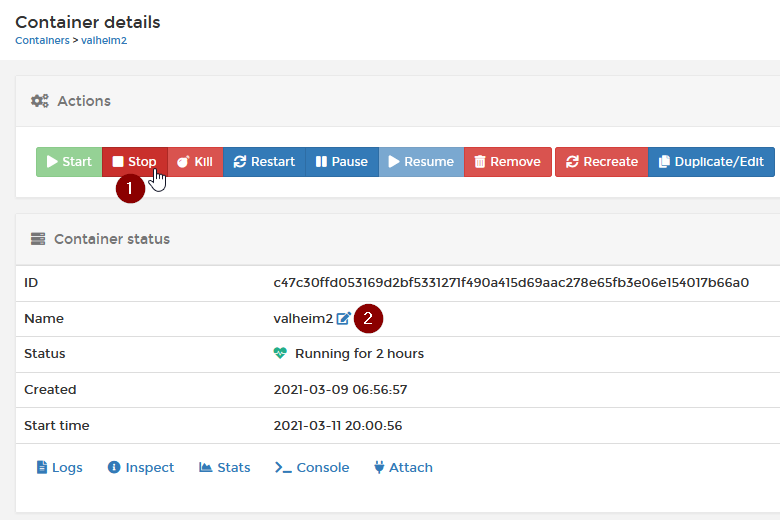
Stop the old container (1) and edit the name (2)
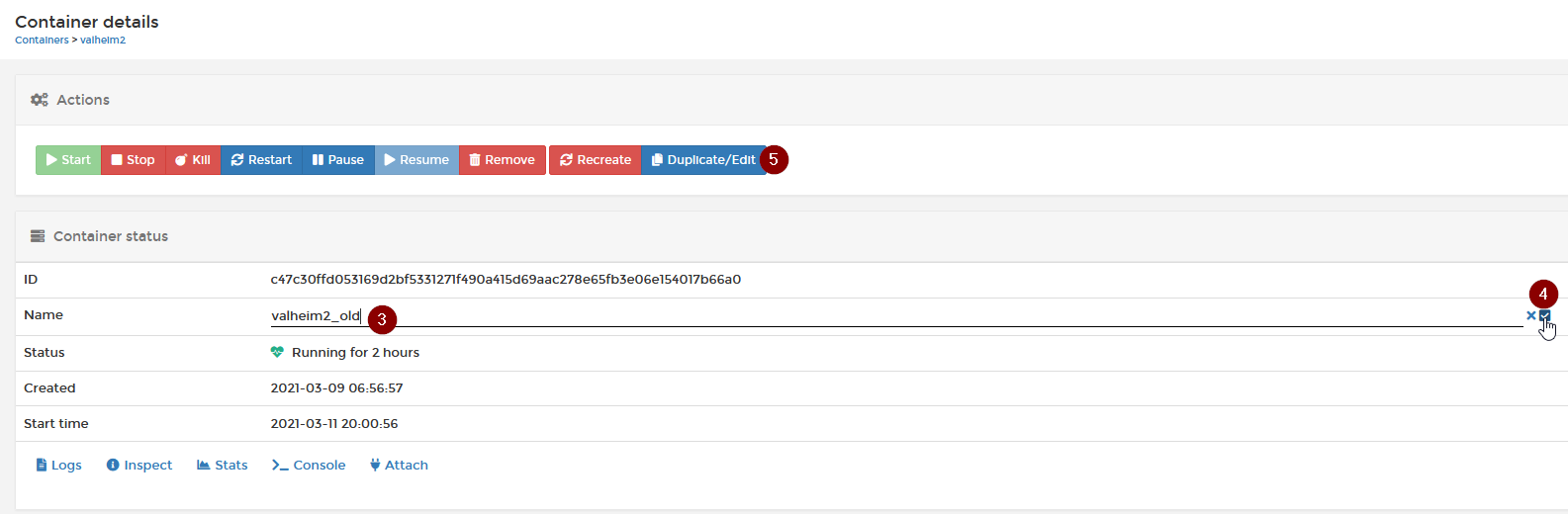
Append _old or similar to the name (3) save the change (4) and click "Duplicate/Edit" (5)
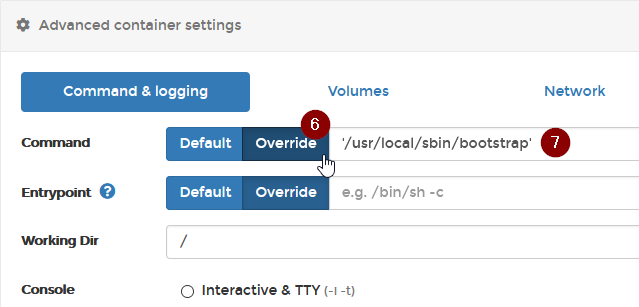
Change the name back to original name (2) (3) (4).
Unter Advanced container settings override (6) the command and enter /usr/local/sbin/bootstrap (7)
Make sure "Always pull the image" is enabled.
click "Deploy the container" to finish.
If your server starts and is working delete the old unused image and the old container.
Synology Help
First install
This is not an extensive tutorial, but I hope these screenshots can be helpful. Beware that the server can use multiple GB of RAM and produces a lot of CPU load.
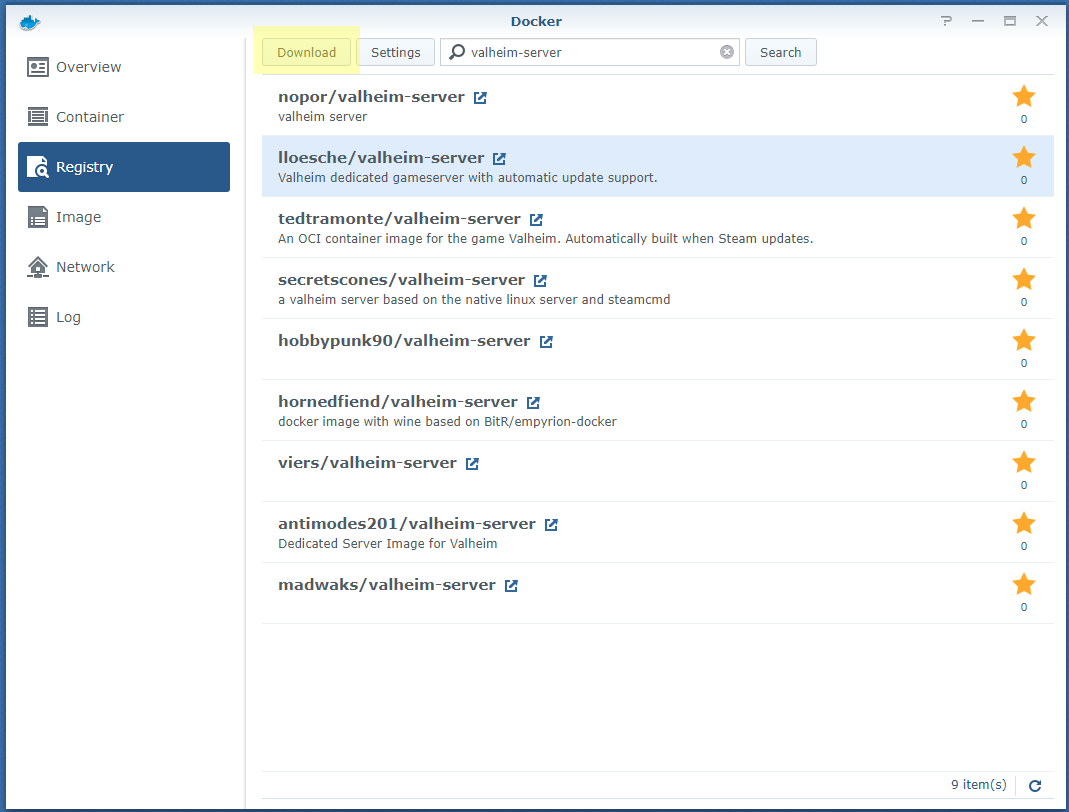
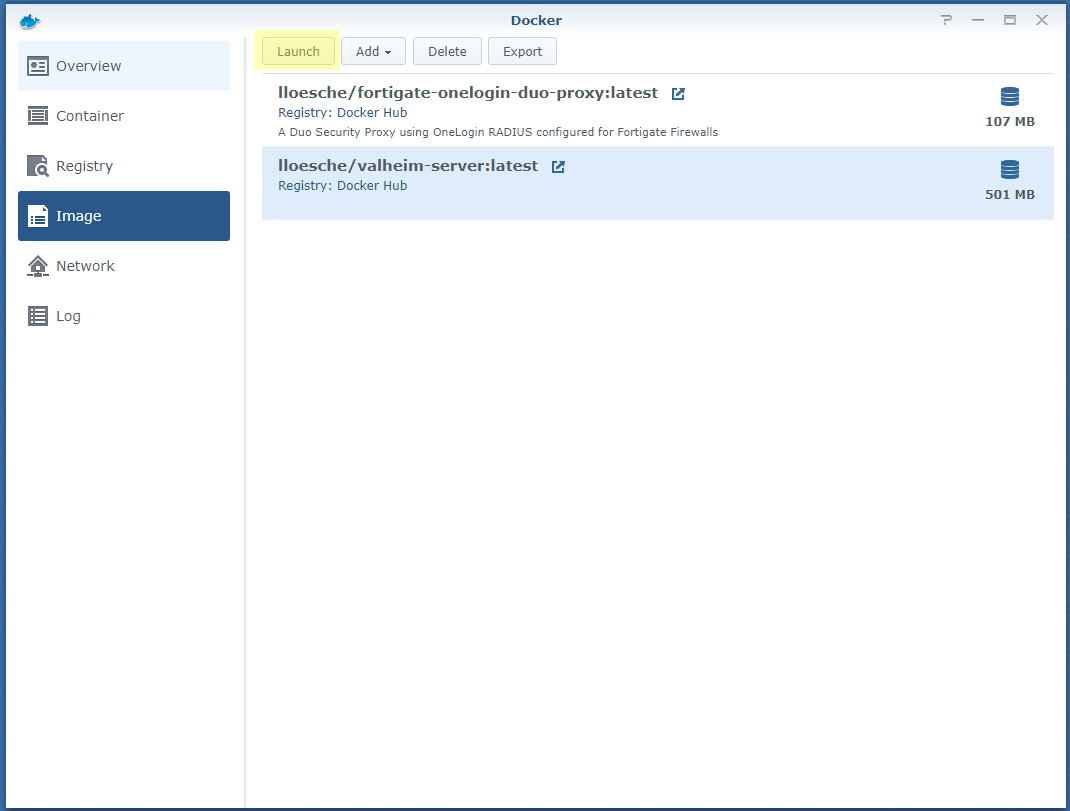
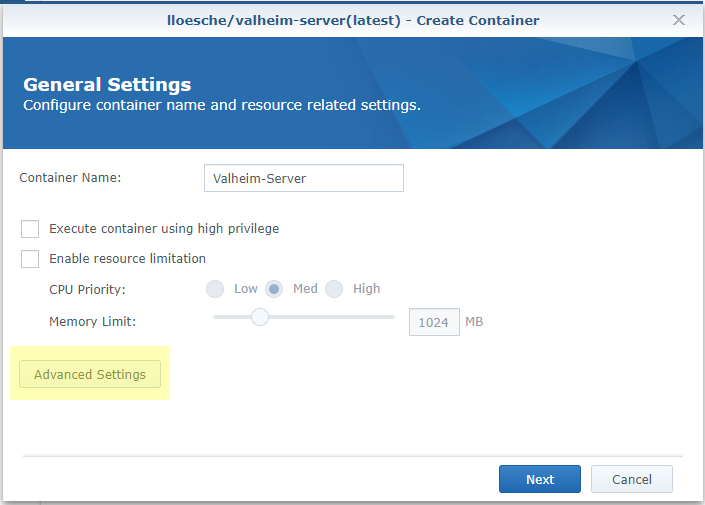
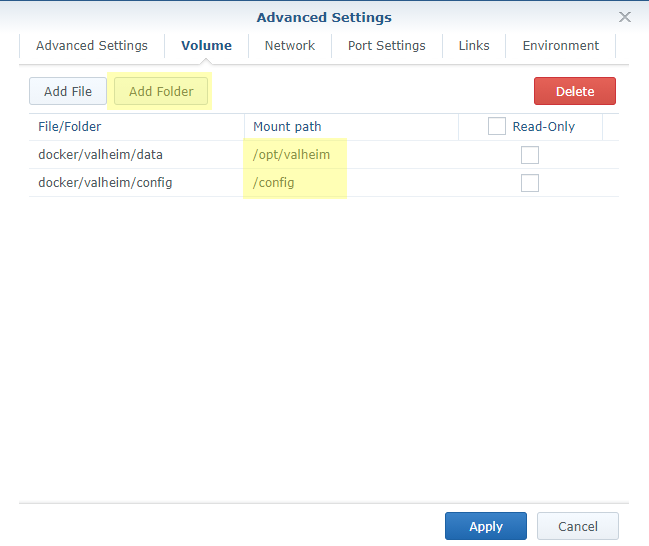
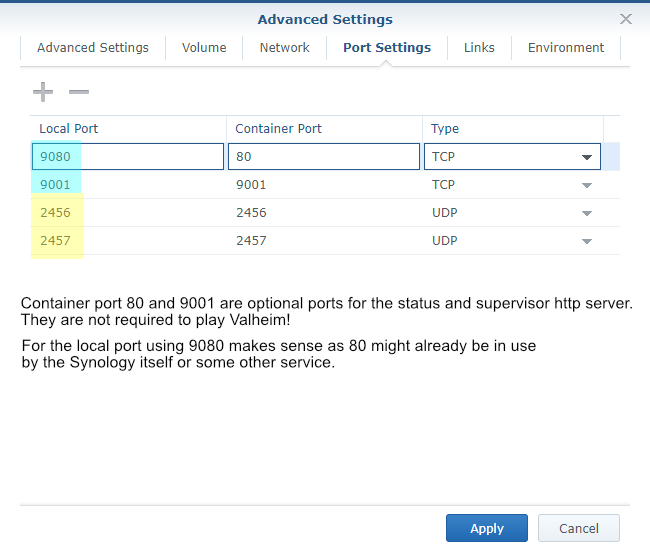
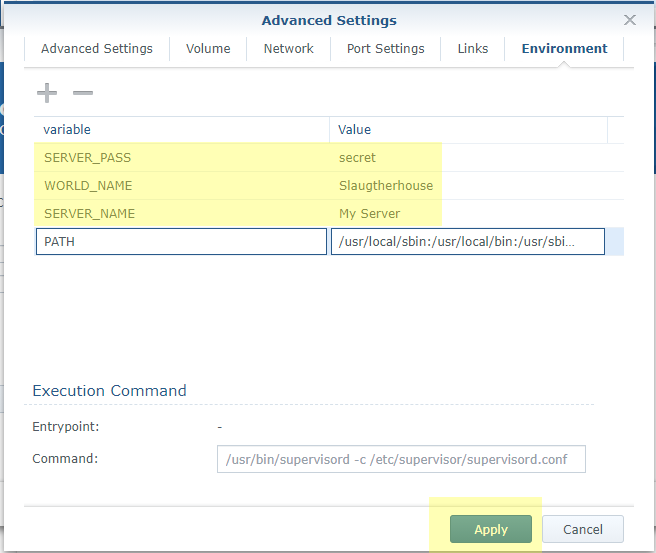
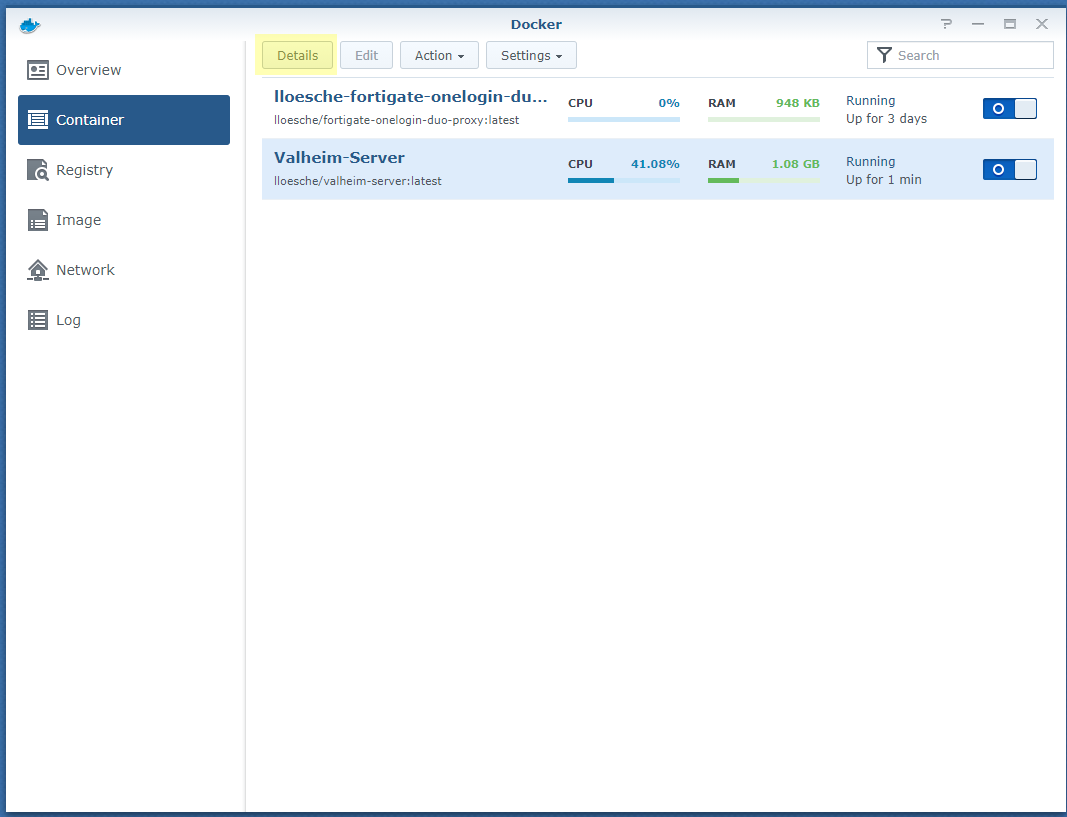
Updating the container image to the latest version
The process of updating the image clears all data stored inside the container. So before doing a container image upgrade, make absolutely sure that /config, which contains your world, is an external volume stored on your NAS (Step 4 of the First install process). It is also a good idea to copy the latest version of the world backup to another location, like your PC.
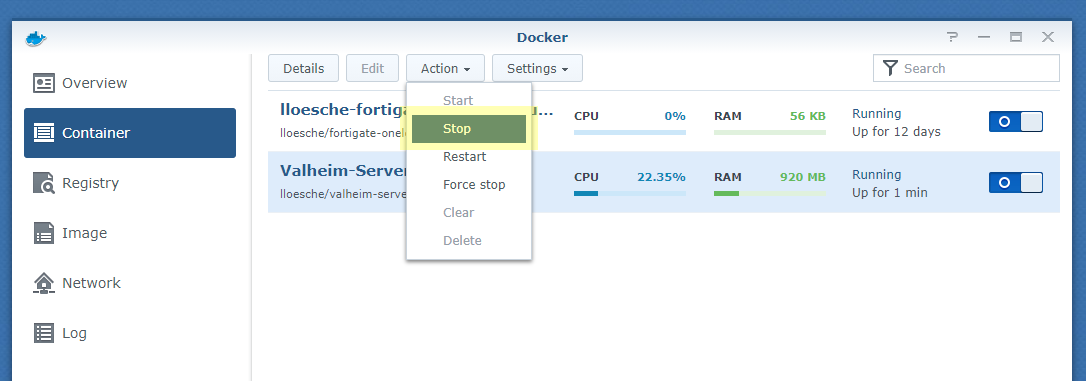
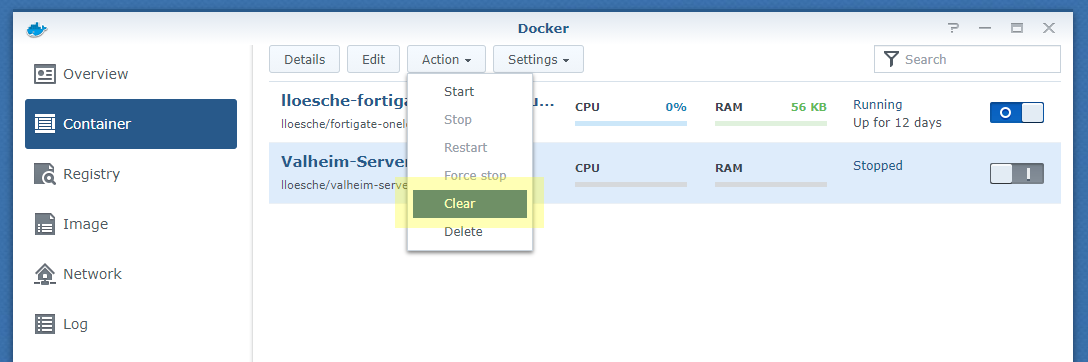
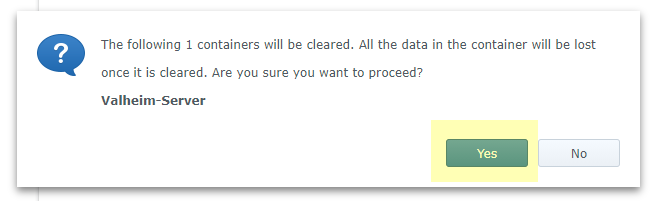
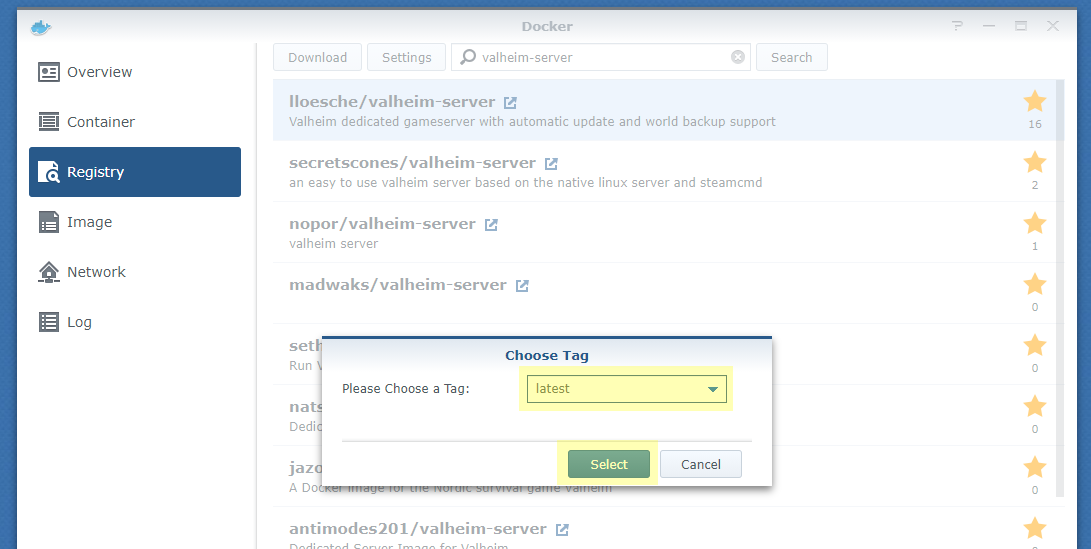
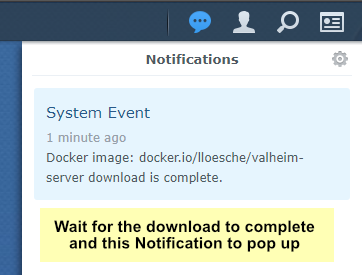
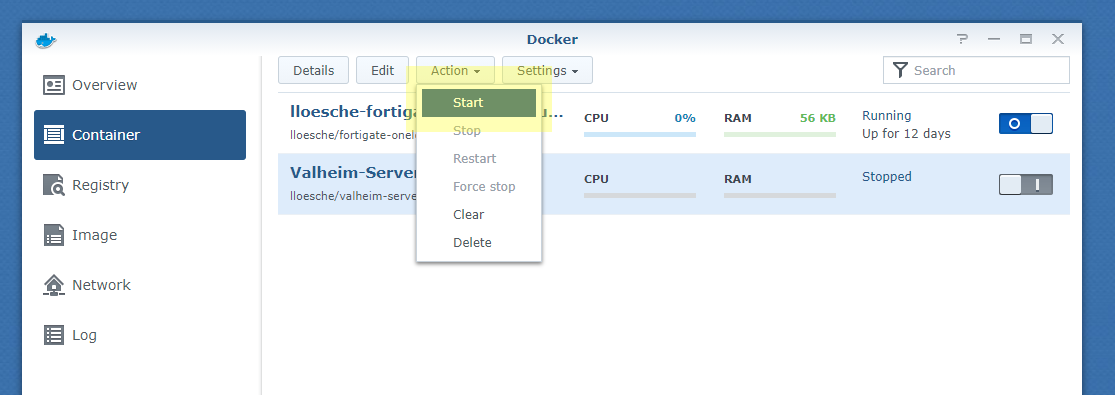
Error after download of new container image
If you are getting the following error after an Update:
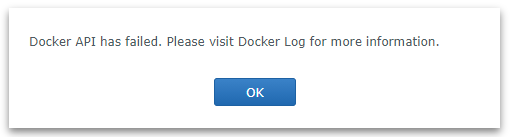

"Failure: OCI runtime create failed: container_linux.go:367: [...]"
You will need to remove the container completely and perform the First install steps again.
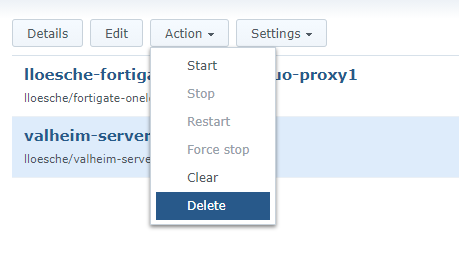
Make sure to use the same folder settings as before so the existing /config and /opt/valheim directories are used.
The error is caused by Synology using the old image's CMD with the newly downloaded image. By removing the container and recreating it we're forcing Synology to use the new images CMD.
QNAP NAS Help
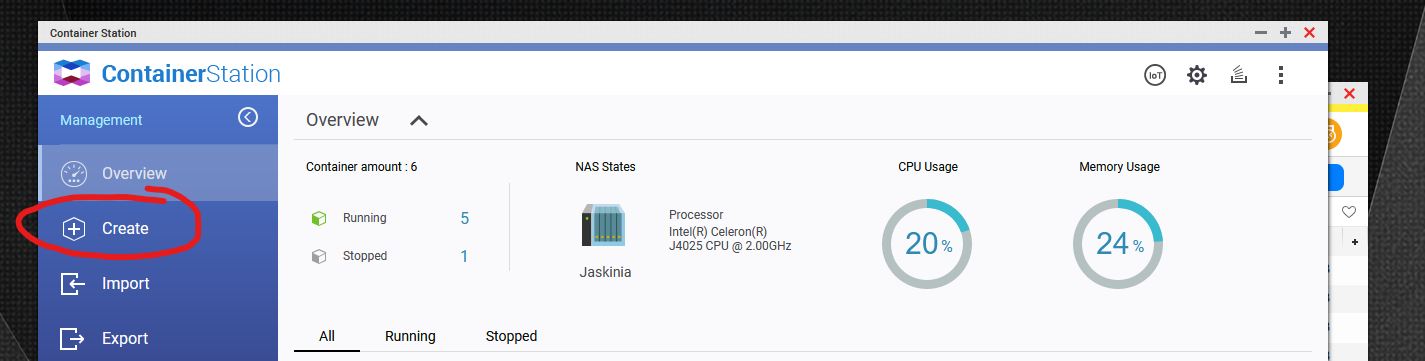
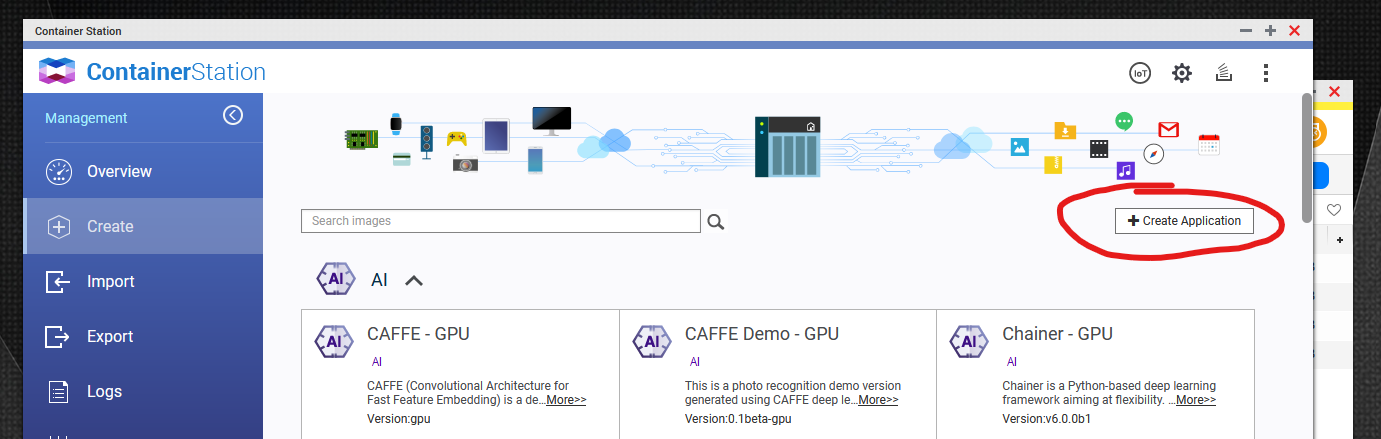
Creating container
As a prerequisite you need to create a folder where you will keep your saves, backups and configuration.
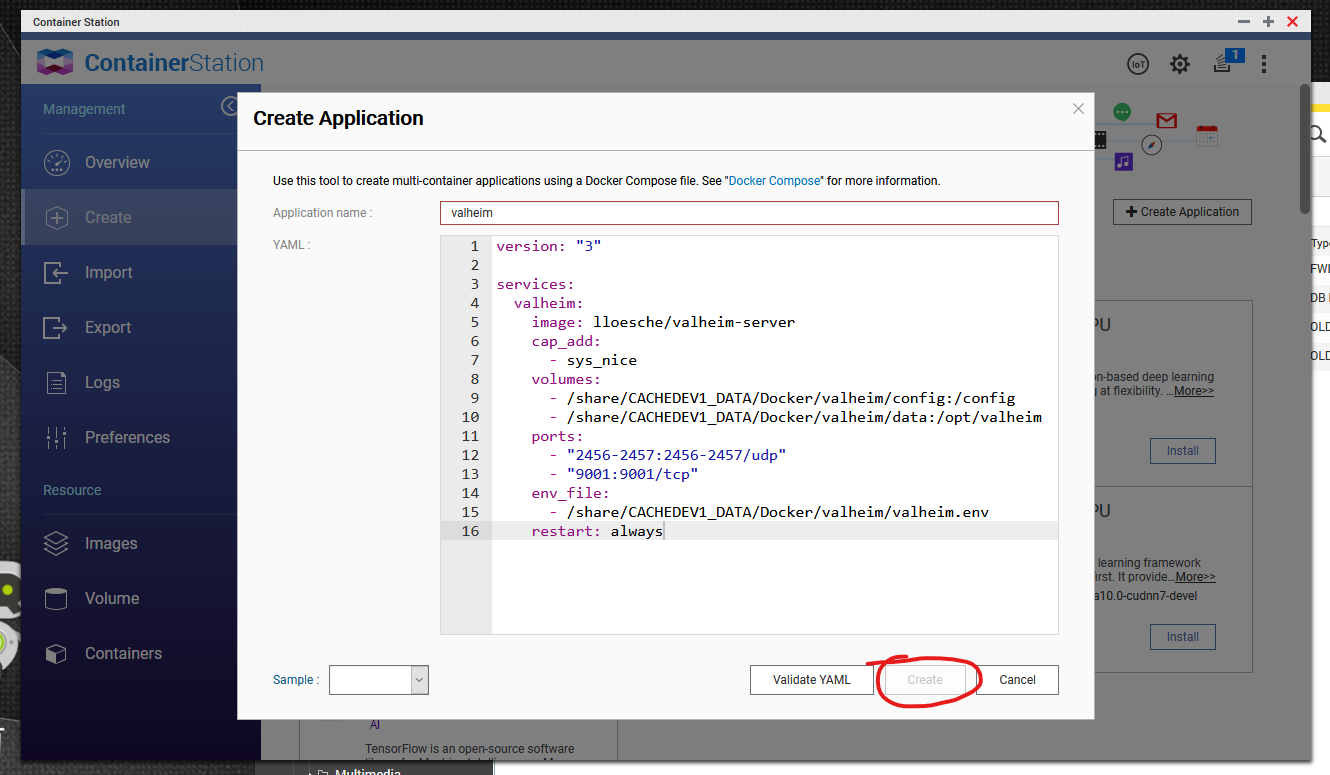
Here is an example docker-compose.yaml file that we will use in the next steps.
services:
  valheim:
    image: community-valheim-tools/valheim-server
    cap_add:
      - sys_nice
    volumes:
      - /share/CACHEDEV1_DATA/{path_to_folder}/config:/config
      - /share/CACHEDEV1_DATA/{path_to_folder}/data:/opt/valheim
    ports:
      - "2456-2457:2456-2457/udp"
      - "9001:9001/tcp"
    env_file:
      - /share/CACHEDEV1_DATA/{path_to_folder}/valheim.env
    restart: always
    stop_grace_period: 2m
    deploy:
      resources:
        limits:
          cpus: "0.70"
          memory: 4gb
The most important part is /share/CACHEDEV1_DATA/{path_to_folder}/config. You need to replace {path_to_folder} with the folder path where you want to store data and configuration for your Valheim server.
Change your memory and cpu limit according to your available resources on QNAP. Current settings are 70% of single CPU and 4gb of RAM.
In this folder you need to create a file valheim.env to store configuration variables.
Example valheim.env:
SERVER_NAME=My Server
WORLD_NAME=Dedicated
SERVER_PASS=secret
SERVER_PUBLIC=true
Updating image
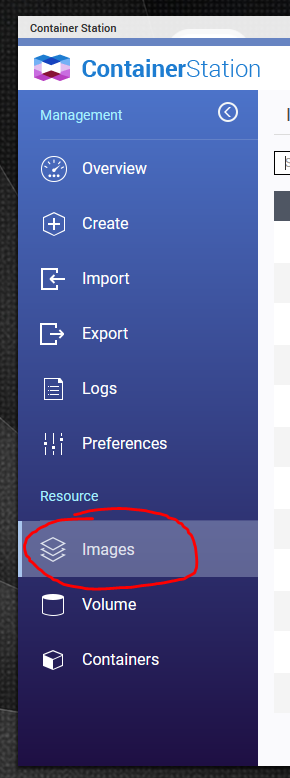
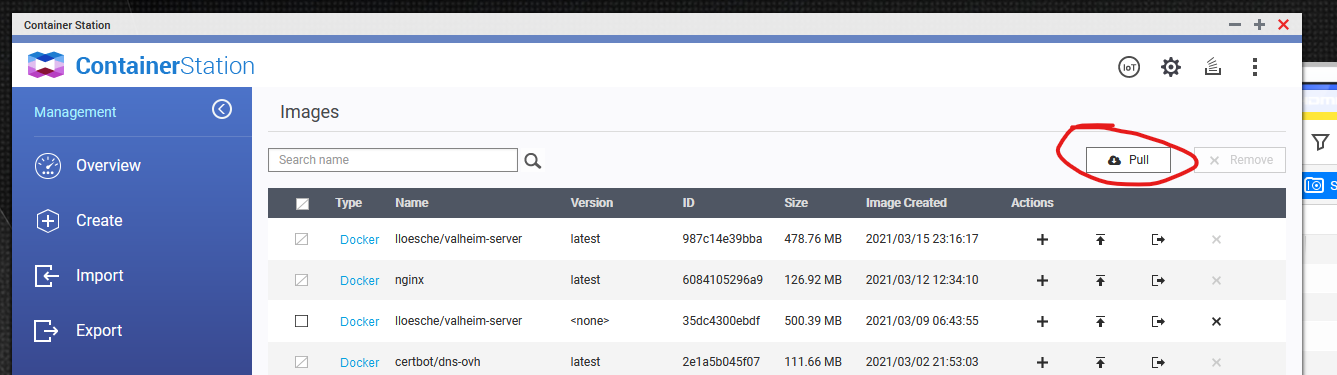
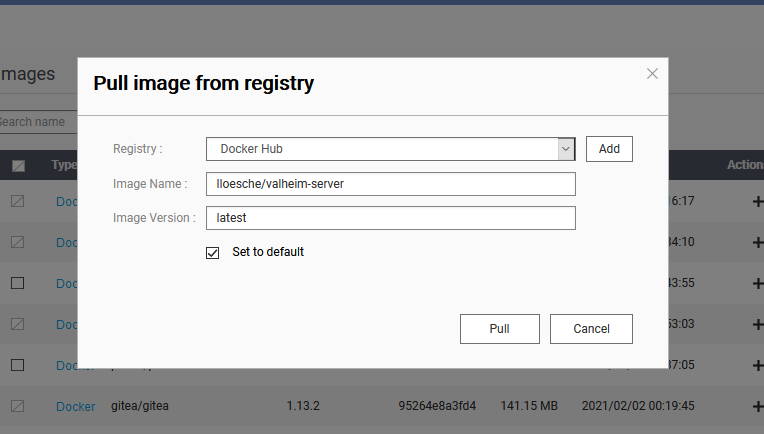
In the image name you have to specify the image from the container definition community-valheim-tools/valheim-server.
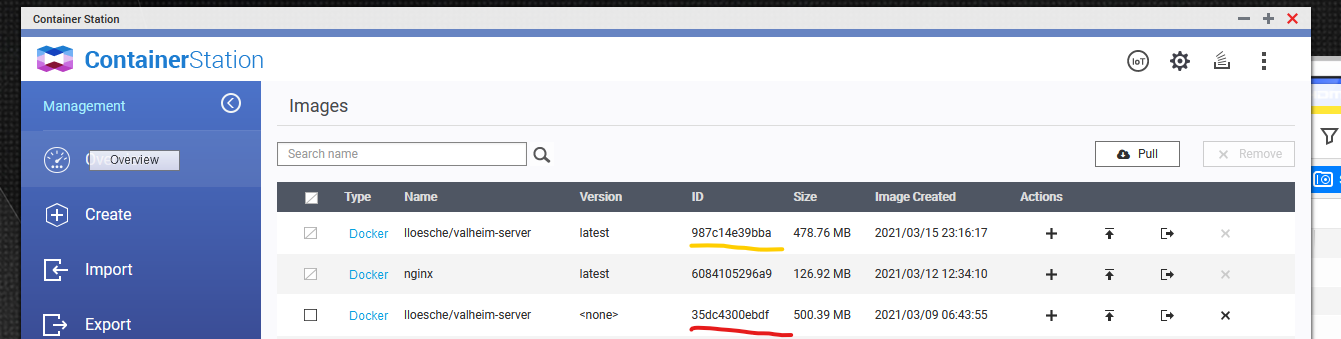
After the image is downloaded restart the container. As you can see the old image is now unused and the new one is in use by the container. You can now safely delete the old image.
QNAP ZFS issue
We have had a report from a QNAP user where Steam failed when using ZFS as the backing filesystem with the following error
valheim-updater [ 0%] !!! Fatal Error: Steamcmd needs 250MB of free disk space to update.
valheim-updater src/tier0/threadtools.cpp (3553) : Assertion Failed: Illegal termination of worker thread 'Thread(0x0x58a1d8f0/0x0xf7780b'
This appears to be due to a bad Steam/ZFS interaction akin to this Steam bug where very large ZFS volumes get interpreted as very small due to bad overflow handling. There are two workarounds available. Use a non-ZFS volume, or set a quota on the volume, e.g.:
- Connect to the QNAP SSH console.
- Get the ZFS volume ID from within the container
df /opt/valheim | tail -n 1 | awk '{ print $1 }'
- Set the quota to 2TB or less from the QNAP SSH console:
zfs set quota=1TB "volume_id_here"
You could also try this one-liner from the SSH console:
CONTAINER="your_valheim_container name/id" \
  docker exec -t "$CONTAINER" df /opt/valheim | tail -n 1 | awk '{ print $1 }' | \
  xargs -I zfs_id sudo zfs set quota=1TB zfs_id
If you have access to a QNAP NAS running ZFS and can reproduce/debug this issue further, please open a new issue with your findings so we can update this section and provide more information here.
OpenMediaVault Help
Permission denied error
If you are running this container in Portainer on a OpenMediaVault NAS and getting the following error
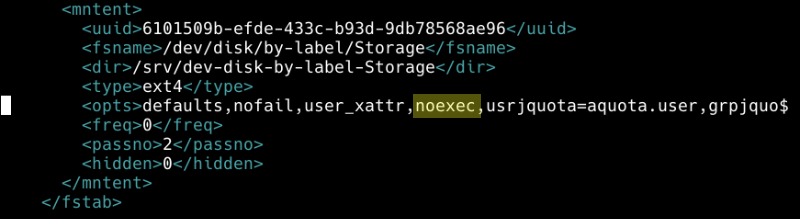
valheim-server /usr/local/bin/valheim-server: line 110: /opt/valheim/server/valheim_server.x86_64: Permission denied
the cause is that the container's filesystem is mounted with the noexec flag. Meaning no files are allowed to be executed on that filesystem.
See this page for detailed information on how to disable noexec for newly created and existing filesystems.
For existing filesystems edit /etc/openmediavault/config.xml and remove the noexec option from the filesystem in question. The file should look something like this
License
Copyright 2021 Lukas Lösche
Licensed under the Apache License, Version 2.0 (the "License");
you may not use this file except in compliance with the License.
You may obtain a copy of the License at
http://www.apache.org/licenses/LICENSE-2.0
Unless required by applicable law or agreed to in writing, software
distributed under the License is distributed on an "AS IS" BASIS,
WITHOUT WARRANTIES OR CONDITIONS OF ANY KIND, either express or implied.
See the License for the specific language governing permissions and
limitations under the License.
Legal disclaimer
This Docker container is not endorsed by, directly affiliated with, maintained, authorized, or sponsored by Iron Gate Studio.
Valheim, Valheim dedicated server and the Valheim Logo are © 2021 Iron Gate Studio.